This article was updated in January 2026.
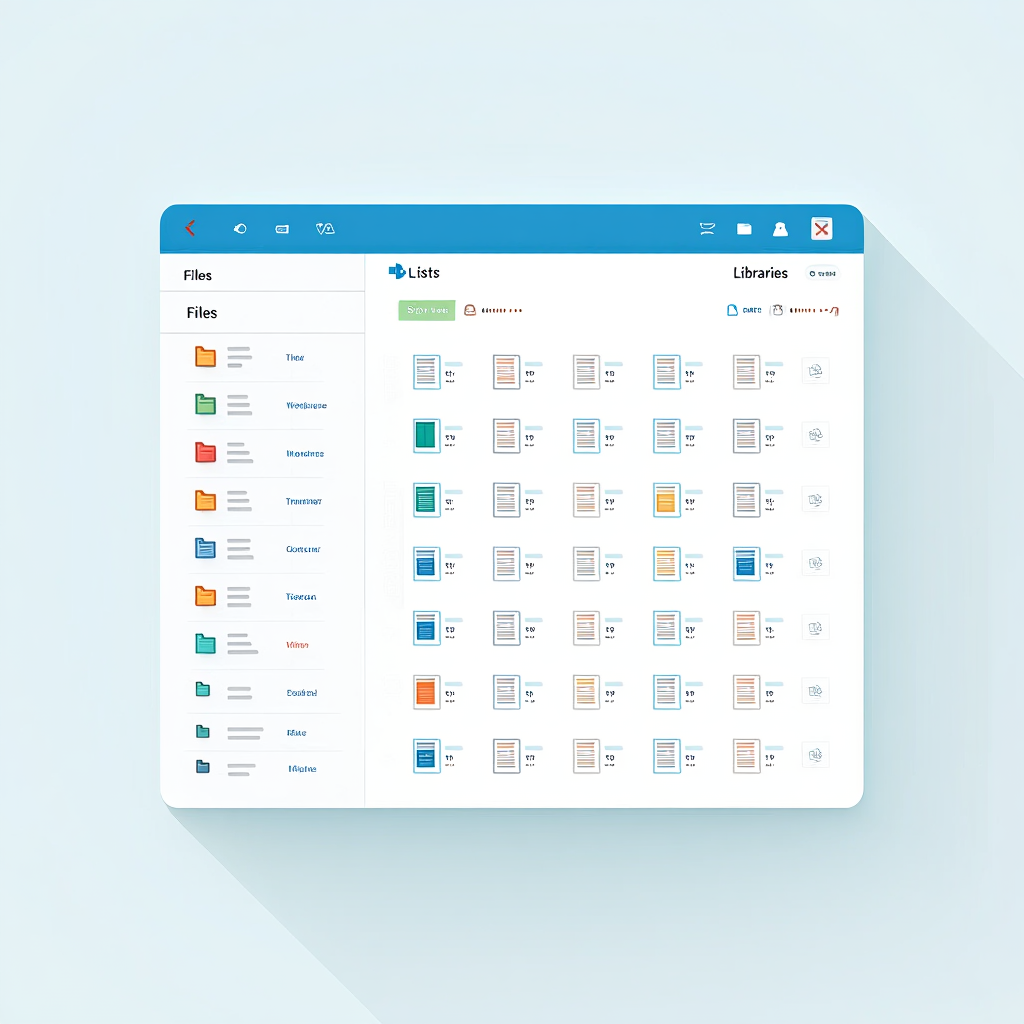
Archiving SharePoint documents means moving old or rarely used files, lists, or libraries to a separate storage area. This ensures that the main workspace is clean and efficient. This practice is relevant when your SharePoint environment becomes extensive and there are certain storage requirements. The SharePoint document archive is useful if you need to save records or reduce storage costs. This will help you improve website performance, simplify file searches, and reduce costs.
To achieve this goal, you can use the built-in SharePoint tools (versioning and retention policies), automate workflows using Power Automate, or turn to specialized third-party archiving solutions. The main steps include defining data for archiving, configuring rules or automating its movement, and maintaining ordered archives for easy access. At the end of this article, there’s a checklist to help you prepare, move, and manage SharePoint archived documents while ensuring compliance and easy access.

Why you should archive in SharePoint
“SharePoint archiving isn’t just a best practice—it’s the foundation upon which the success of future tools and innovations will be built.” Said by the Insentra team, experts in Microsoft modern workplace solutions and partners with Microsoft for over a decade.
Regularly archiving inactive SharePoint content helps restore order, improve search performance, and reduce storage costs by removing obsolete data from active workloads. Microsoft’s own guidance for SharePoint and OneDrive recommends using inactive site policies to detect and manage dormant sites, applying retention rules to control content sprawl, and leveraging storage limits to keep search fast and relevant.
Real-world implementations show substantial benefits. For example, Surf Life Saving Australia reduced storage costs by 50% through automated archiving with AvePoint, unburdening IT teams while maintaining data access and compliance. Similarly, Dentsu achieved a 72% cut in SharePoint storage costs by adopting Microsoft 365 Archive combined with version history limits, reducing their active storage footprint from 25 TB to just 2 TB across targeted business units.
“Our analysis reveals a common pattern across our large collaboration sites, typically only 10% to 20% of stored files remain actively used, while the rest accumulates over time.” — Said by Axel Mellars, Head of Collaboration Platforms at Dentsu International, 2025.
These examples highlight the operational efficiency and significant financial savings from systematic archiving.
Speeding Up Sites and Staying Organized
Crowded SharePoint sites crawl. Piles of files make searches a slog and stretch load times. Document library archiving shifts old data aside, keeping active libraries lean. Teams enjoy snappier performance and less frustration. A logistics firm cut search times by 25% with document library archiving. Think of decluttering a garage—old gear gets stashed, but you can grab it when needed.
Staying Compliant Without Drama
Regulations like GDPR or HIPAA demand keeping records for set periods. Archiving SharePoint documents stores files securely without gumming up active spaces. Set rules to move or delete data, meeting legal standards. A healthcare provider dodged a $50,000 fine by using document library archiving for audit-ready records. Ignoring this risks penalties or legal headaches.
Cutting Storage Costs
Storage in SharePoint runs about $0.20 per gigabyte monthly. For 1TB, that’s $2,400 a year. SharePoint cleanup moves old files to cheaper spots like Azure Blob or local drives, slashing bills. A manufacturing firm saved $8,000 yearly by archiving 60% of its data. In a real-world example, a food company like Hero automated archiving of 10 TB of Microsoft 365 data annually using tools like AvePoint, saving over 12 hours per week on manual tasks and controlling tenant growth from 100 GB/week.
Native archiving options: versioning & retention policies
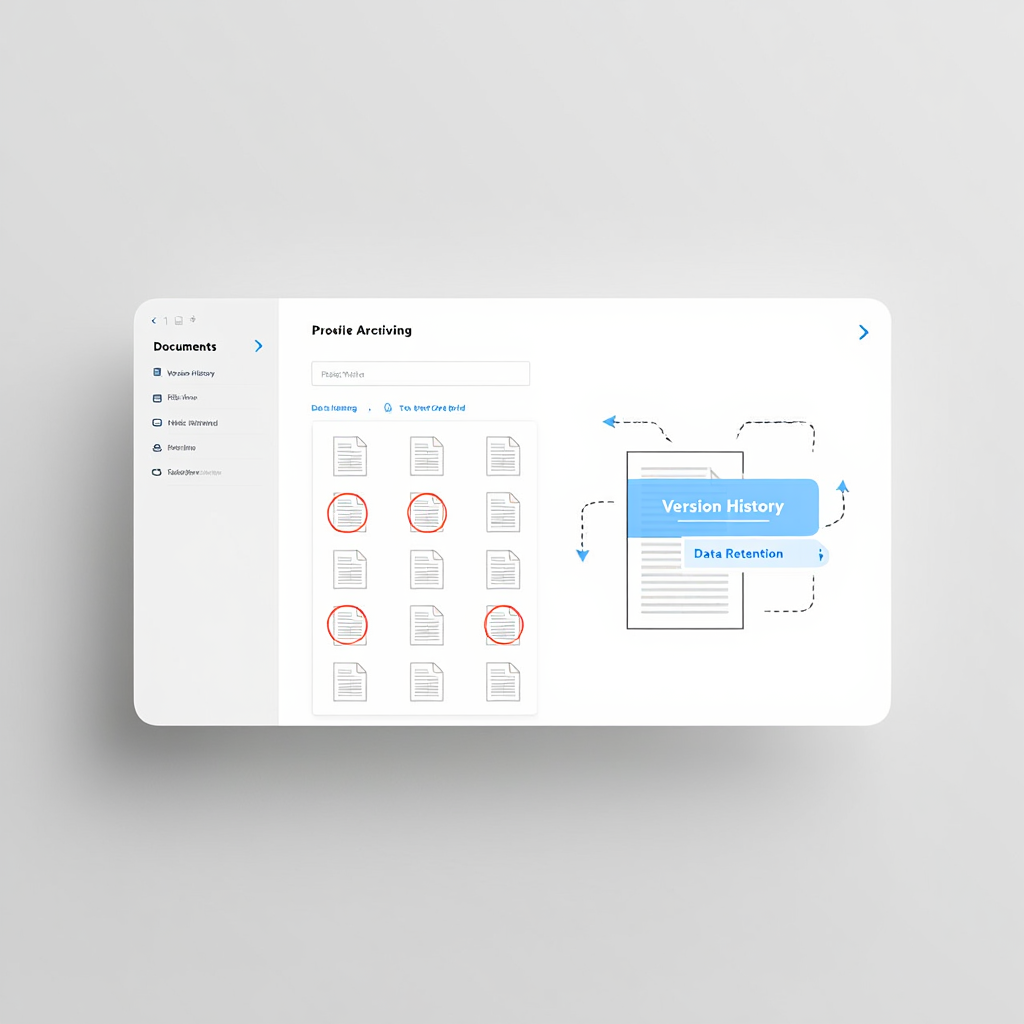
SharePoint packs built-in tools for archiving. They’re simple for most teams, though not perfect. Versioning and retention policies lead the pack for managing data.
Versioning: Tracking Changes
Versioning grabs every tweak to a document, letting users jump back to older versions. Setup is a breeze:
- Head to document library settings.
- Switch on versioning.
- Cap versions at, say, 100, to save space.
- Check past versions via the file’s history.
This tracks edits without extra tools. Unchecked versioning bloats storage. Some firms have seen libraries stall with thousands of versions piling up.
Retention Policies: Hands-Off Management
Retention policies decide a file’s fate after a set time. Configure them in the Microsoft 365 Compliance Center. Choose a library, set a duration like seven years, and pick archiving or deletion. This streamlines SharePoint cleanup for old data. Businesses needing records for audits benefit without crowding libraries. Archiving SharePoint documents this way saves time.
Limits of Built-In Tools
Native tools shine for simplicity but stumble on complex jobs. Versioning eats storage if not capped. Retention policies can be rigid, sometimes zapping needed files. Moving whole libraries? That’s beyond their scope. Companies with big data loads often seek better ways to manage their archives. To mitigate these issues, integrate retention policies with custom labels in Microsoft Purview, allowing flexible rules that prevent accidental deletion while capping versions automatically/
Power Automate for automated archiving
Power Automate, a Microsoft gem, makes archiving a snap with automation. Setup takes work, but it cuts manual tasks. Teams aiming for slick document library archiving find it a lifesaver.
Building an Archive Workflow
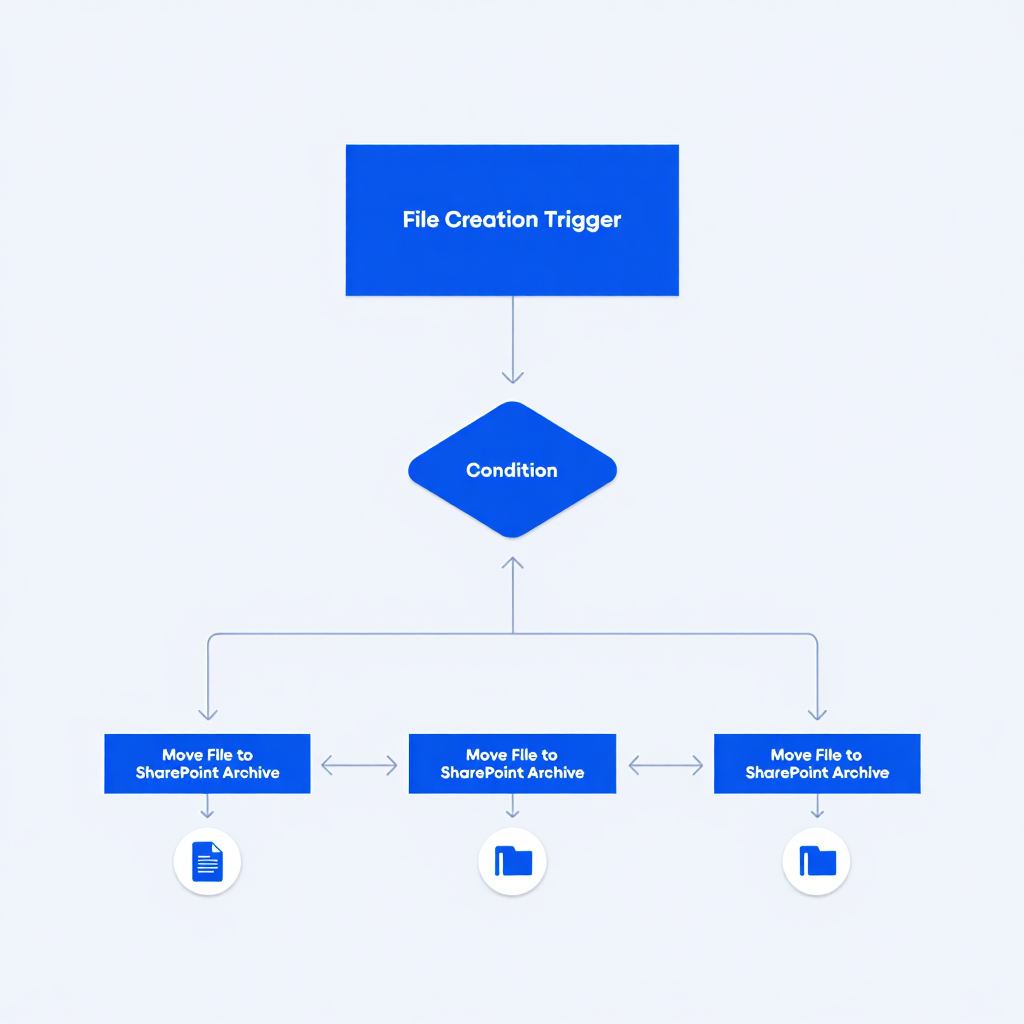
Power Automate builds flows to shift old files to an archive library. Pick a trigger, like files older than two years, and set a destination. Here’s a quick setup:
| Step | Action | Details |
|---|---|---|
| Trigger | File Age | Shift files older than two years. |
| Action | Move File | Send to an archive library. |
| Condition | Metadata | Check tags like “Inactive” before moving. |
| Notification | Alert admins when files move. |
This flow streamlines document library archiving without sweat. Companies save hours weekly, making it a go-to for SharePoint cleanup.
To help you turn the concepts and workflows discussed above into real action, here’s a practical implementation roadmap. This table outlines the key steps, recommended tools (including built-in Microsoft features and Power Automate), and realistic timelines for a typical mid-sized organization. Use it as your step-by-step guide to roll out archiving successfully.
| Archiving Step | Description | Tools Needed | Timeline |
|---|---|---|---|
| Identify Inactive Data | Review and analyze files, lists, and sites inactive for 2+ years (or based on last activity). Use reports to spot ROT content. | SharePoint Analytics, Inactive Site Policies (simulation mode), Microsoft Purview reports | 1–2 weeks |
| Define Rules & Policies | Set criteria for archiving (e.g., “Inactive” metadata tag, retention period 2–7 years, inactivity threshold 6–12 months). | Retention Policies & Labels (Microsoft Purview), Inactive Site Policies, Metadata columns | 3–5 days |
| Configure Automation | Build flows to move/copy old items to archive library/site or apply Microsoft 365 Archive to sites. Test triggers (recurrence, on item modified). | Power Automate (recurrence flows, SharePoint connector), Microsoft 365 Archive (if full-site) | 1–2 weeks |
| Pilot & Test | Run on a small set of sites/libraries: archive sample data, verify access, search, notifications, and rollback (reactivate if needed). | Test environment, Email Alerts, Power Automate approvals | 1 week |
| Rollout & Monitor | Deploy organization-wide: enable active policies, set monthly notifications, monitor reports, adjust based on feedback. | Inactive Site Policies (active mode), SharePoint Admin Center reports, Third-party tools (AvePoint/ShareGate for advanced) | Ongoing (monthly reviews) |
For a hands-on demonstration of setting up an archiving policy for files unmodified in the last six months, check out this video tutorial on automating SharePoint Online file archiving with Power Automate.
Handling List Items Archive
Creating a list items archive is trickier, but Power Automate nails it. Build a flow to check a “Status” column. Items marked “Done” slide to an archive list. Run it weekly or monthly. This keeps task trackers tidy, boosting SharePoint cleanup. A consulting firm sorted 8,000 task items with a list items archive, ramping up efficiency. To further optimize your archiving process, consider leveraging metadata-driven tools that automate classification and routing of documents.
Tips for Better Workflows
Smart workflows need planning. Test triggers to keep active files safe. Tag files clearly, like “Project X Archive,” for precise conditions. Connect Power Automate with Teams to archive related chats. A law firm shaved 10 hours monthly by syncing a list items archive with Teams data. Check flows to spot glitches. This ensures smooth document library archiving.
Pros and Cons of Power Automate
Power Automate rocks automation but isn’t instant. Complex flows demand clear metadata. Its flexibility pairs with SharePoint’s tools, easing list items archive tasks. Businesses cut manual work, but setup takes effort. This approach pays off for teams ready to invest time. For a detailed comparison of manual and automated approaches to archiving SharePoint documents, we recommend reviewing the pros and cons of manual and automated SharePoint archiving.

Best third-party tools for archiving
When native tools or Power Automate fall short, third-party solutions step up. They bring robust features, simpler setup, and tighter control. Here are top picks for archiving SharePoint documents:
- ShareGate: Tackles sites, libraries, and lists, keeping metadata and permissions intact. Perfect for big firms.
- AvePoint: Excels at compliance for industries like healthcare. Ideal for strict rules.
- CloudAlly: Specializes in cloud backups. Great for off-site document library archiving.
- Metalogix: Manages large libraries easily. Suits admins juggling multiple sites.
Why Third-Party Tools Shine
These tools handle tough jobs. They process huge data volumes, preserve links, and boost SharePoint cleanup. Native options often buckle under such loads. ShareGate helped a firm archive 3TB of data in days, a task manual methods couldn’t touch. Third-party tools save serious time.
Real-World Wins with Third-Party Tools
Examples show their value. A hospital used AvePoint for a list items archive, meeting HIPAA rules and cutting storage costs by 15%. A startup chose CloudAlly to back up data off-site, recovering files after a cyberattack. ShareGate aided a retailer with document library archiving, preserving 400GB of metadata. These wins prove tools fit specific needs.
Picking the Best Tool
Choosing the right tool depends on your needs. Here’s what each offers:
- ShareGate suits large-scale archiving with strong cloud support and high ease of use, making it ideal for big companies juggling multiple sites.
- AvePoint is best for compliance-heavy industries like healthcare, offering robust cloud support but with moderate ease of use due to its complex features.
- CloudAlly focuses on budget-friendly cloud backups, providing high ease of use and full cloud support for off-site storage needs.
- Metalogix excels at multi-site management, with limited cloud support but high ease of use for admins handling large libraries.
Picking the wrong tool leads to overpaying for features you won’t use. Try trial versions to test what fits best.
Drawbacks to Weigh
Third-party tools cost money, unlike native ones. They rely on provider stability. Switching tools can tangle archives. Firms hitting this snag face headaches. Weigh costs against time saved.
Here is a useful video that explains in detail how to use Power Automate for automatic archiving of documents in SharePoint. It walks you through the step-by-step setup of workflows, helping you efficiently organize storage and free up space on your site. We recommend watching it if you want to see a practical implementation of the automation discussed in the article.
FAQ
Can I archive an entire SharePoint site?
Yes, but not with a simple “archive” button. You can manually save the site as a template (with its content) or use Microsoft 365 retention policies to preserve its data in place. For a true “offline” archive, you would need third-party backup tools to export the site’s contents.
Will archiving break my Power Automate flows?
Yes, almost certainly. Flows are tied to specific lists and libraries. If you move or archive that content, the flow will fail because it can no longer find its trigger or the items it needs to update. You must manually update or disable any flows connected to the content you are archiving.
Does archiving a list also save its version history?
It depends on your method. If you use the “Export to Excel” feature, you only get the last-published version of the data. To save the complete version history, you must either save the list as a template or use a third-party backup tool that is designed to capture all versioning data.
What happens to my document metadata when I archive?
This is a major risk. If you simply “drag and drop” files to a local drive, you will lose almost all your SharePoint metadata columns (like ‘Status’, ‘Owner’, or ‘Review Date’). To preserve metadata, you must either export the library to Excel (which separates the data from the files) or use a formal migration tool.
Can I archive just one folder from a document library?
Yes. You can use the “Move to” command to move a specific folder to another location, such as a separate “Archive” library or site. This is a common way to manually archive project-specific materials while keeping the main library active. Just be aware this will break any links pointing to those files.
Conclusion
Archiving SharePoint documents, lists, and libraries keeps sites humming. It frees space, speeds searches, and meets regulations. Native versioning and retention policies suit small teams. Power Automate automates document library archiving and list items archive, slashing grunt work. Third-party tools like ShareGate or AvePoint tackle complex needs. SharePoint cleanup turns messy sites into organized hubs. Pick a method, test it, and keep data shipshape.

Optionally, use this checklist to ensure documents are archived securely, remain accessible when needed, and support compliance with your organization’s governance policies.
Sources
- SharePoint site lifecycle management (inactive site policies, archiving, content sprawl control). Microsoft, last updated January 20, 2026. SharePoint site lifecycle management.
- Manage site collection storage limits (pooled vs manual storage, monitoring, notifications). Microsoft, last updated March 17, 2025. Manage site collection storage limits.
- Retention policies for SharePoint and OneDrive (Preservation Hold library, retain-and-delete options, compliance). Microsoft Purview, current as of 2026. Retention policies for SharePoint and OneDrive.
- Add more SharePoint storage to your subscription (additional storage pricing). Microsoft, current as of 2026. Add storage space for your subscription.
- Surf Life Saving Australia reduced storage costs by 50% with AvePoint Opus Cloud Archiving. AvePoint, case study (updated references 2023–2025). SLSA Cuts Storage Costs by 50% with AvePoint & ExigoTech.
- Dentsu achieved 72% reduction in SharePoint storage costs using Microsoft 365 Archive and version history limits (from 25 TB to 2 TB active storage). Microsoft Tech Community, November 18, 2025. Dentsu strengthens its governance with Microsoft 365 Archive.
- Hero automates archiving of 10 TB of Microsoft 365 data annually (5 TB archived to date, timing savings >12 hours/week). AvePoint, case study (undated, references ~2023–2025). Hero automates archiving of 10 TB of Microsoft 365 data annually.
- Why SharePoint storage becomes a cost trap and how IT can escape it (discusses storage overages and optimization strategies). Layer2, 2024–2025. SharePoint Storage Becomes a Cost Trap and How IT Can Escape It.
- Axel Mellars, Head of Collaboration Platforms, Dentsu International, 2025. Dentsu strengthens its governance with Microsoft 365 Archive.
- Insentra team, 2023. The Silent Power of SharePoint Archiving in the Age of Microsoft Copilot.