This article was updated in January 2026
In modern collaborative environments, SharePoint Online is a cornerstone for document management, enabling seamless storage, sharing, and collaboration on files. However, its versioning feature, while powerful, can significantly impact storage usage if not managed properly. Delete versions SharePoint Online refers to the process of removing outdated or unnecessary document versions to optimize storage and maintain system efficiency. This article explores how to effectively manage version history, addressing pain points like storage bloat and providing actionable strategies to streamline your SharePoint environment using techniques such as delete versions SharePoint Online, setting version limits, and leveraging version limit scripts.
Why is this important? Unchecked versioning can lead to excessive storage consumption, increased costs, and performance degradation as organizations scale. By implementing versioning best practices, setting version caps, and using tools like PowerShell cleanup scripts, you can reclaim storage, enhance performance, and ensure compliance. This guide dives into key areas like storage impacts, version caps, automation, and scripting, offering practical solutions for administrators and end-users to delete versions SharePoint Online effectively.
Key terms defined
Versioning. The process of saving multiple iterations of a document, allowing users to track changes and revert to previous versions.
Version history. A record of all saved versions of a document in SharePoint.
Storage optimization. Techniques to reduce unnecessary data consumption in SharePoint libraries.
At the end of this article, there’s a checklist to help you set version limits, remove old versions, and automate cleanup to optimize your SharePoint Online storage.
How Versioning Impacts Storage
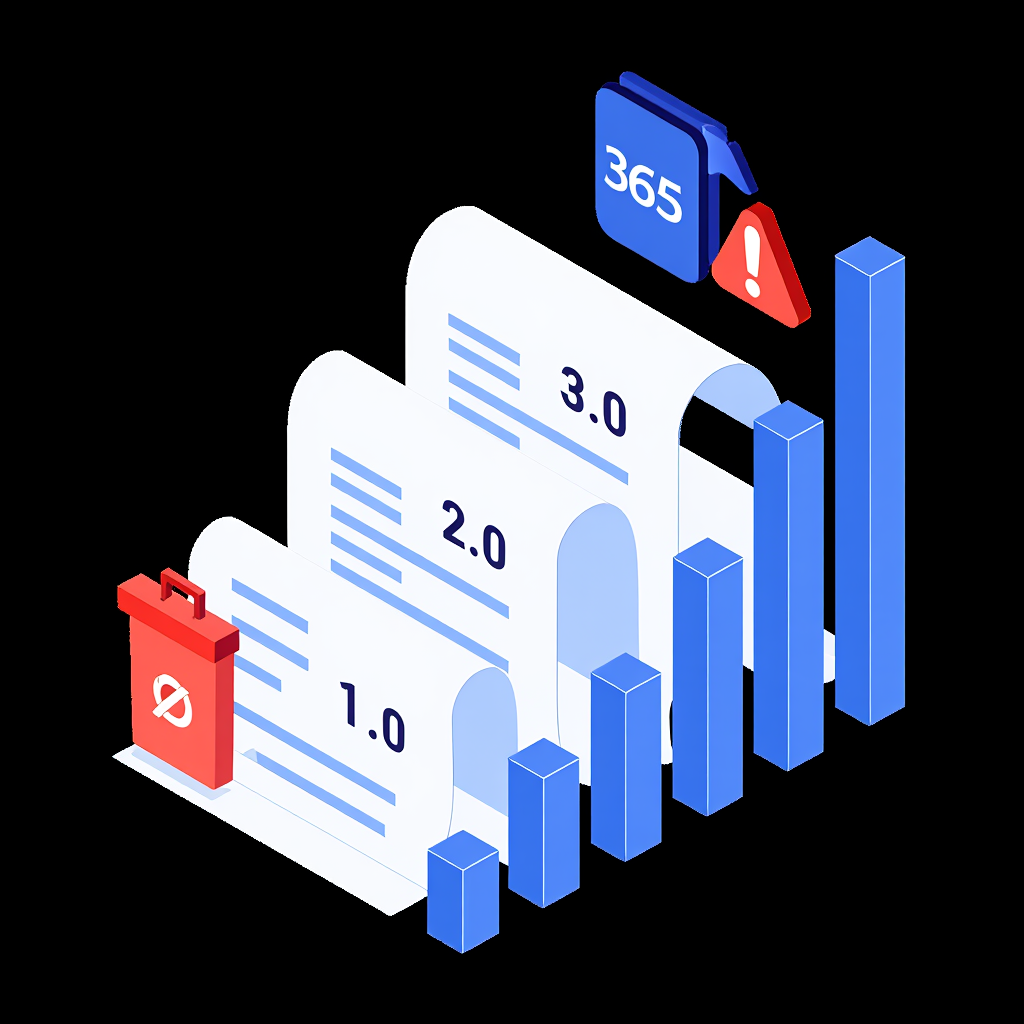
Versioning is enabled by default in SharePoint Online document libraries, saving up to 500 major versions per document unless configured otherwise. Each version is a full copy of the document, meaning a 1 MB file with 100 versions consumes 100 MB of storage.
For organizations with thousands of documents, this can quickly escalate, eating into Microsoft 365 storage quotas. According to Microsoft, SharePoint Online provides 1 TB of base storage plus 10 GB per licensed user, but excessive versioning can deplete this rapidly, leading to additional costs or performance issues. Research indicates that unmanaged versioning can account for up to 40% of a tenant’s storage usage, highlighting the need for proactive management (2024, Syskit).
Storage Quotas and Limits in 202
As of January 2026, SharePoint Online maintains the standard storage quota of 1 TB base per tenant plus 10 GB per licensed user (for qualifying plans like Microsoft 365 E3/E5, Business Standard, etc.), with site collections able to draw up to 25 TB from the pooled storage. Optional expansions are available (e.g., up to 25 TB per site, or additional add-ons in 1 GB increments).
For organizations using media-heavy libraries, consider enabling file-type specific version expiration for audio and video files (introduced in late 2025), which allows setting manual limits like 100 major versions or 30-day expiration to automatically trim older media versions. Additionally, integrate Microsoft 365 Copilot (with its Storage skill in public preview since late 2025) to get AI-driven insights: it can identify high-storage sites, recommend cleanup actions, and help forecast needs—potentially reducing unnecessary consumption through proactive analysis.
Technical Risks of Unmanaged History
Why does this matter?
- Cost implications: Exceeding storage quotas may require purchasing additional storage, which can be costly.
- Performance degradation: Large version histories can slow down library operations, such as file retrieval or search.
- Compliance risks: Unmanaged versions may retain sensitive data longer than intended, violating retention policies.
How can I estimate the storage impact of versioning in my SharePoint tenant?
To estimate, navigate to Site Settings > Storage Metrics in SharePoint Online. This dashboard shows storage usage per library, including version history contributions. For precise analysis, use PowerShell to generate reports on version counts and sizes across libraries, enabling you to plan how to delete versions SharePoint Online strategically.
Real-World Examples
Consider a marketing team with a document library containing 5,000 files, each averaging 2 MB with 100 versions. This consumes 1 TB of storage (5,000 × 2 MB × 100). By reducing versions to 10 per file, storage drops to 100 GB, freeing up 900 GB. Another example is a legal firm that faced performance issues due to a library with 1,000 contracts, each with 200 versions. After implementing a version limit script to delete versions SharePoint Online, they reduced storage by 60% and improved load times.
Uncontrolled versioning can lead to storage bloat, increased costs, and performance issues. Understanding its impact is the first step to implementing effective management strategies, such as setting version caps or automating delete versions SharePoint Online processes.

Setting Version Caps (e.g., Last 100 Versions)
SharePoint Online allows administrators to set version limits at the document library level. By default, libraries store up to 500 major versions, but you can reduce this to a more manageable number, like 100 or 10, using a version limit script or manual configuration.
Manual Configuration Steps
To configure manually:
- Navigate to the document library in SharePoint Online.
- Go to Library Settings > Versioning Settings.
- Under Document Version History, select “Create major versions” and set a limit (e.g., “Keep the following number of major versions: 100”).
- Save changes.
This ensures that only the specified number of versions are retained, with older versions automatically deleted when the limit is exceeded, effectively helping you delete versions SharePoint Online. As of 2026, consider enabling automatic version trimming for audio and video files to automatically expire versions after a set period, further optimizing storage for media-heavy libraries.
Strategic Benefits of Version Limits
- Storage efficiency. Fewer versions mean less storage consumption.
- Simplified management. Reduces the complexity of auditing version history.
- Compliance alignment. Aligns with retention policies by limiting how long old versions are stored.
“By reducing the number of stored file versions, organizations gain immediate control over storage consumption. In many cases, this results in substantial cost savings.” – Said by Kasper Bo Larsen, Microsoft MVP and SharePoint expert, who has extensive experience in optimizing Microsoft 365 environments.
Selecting the Right Retention Count
What’s the ideal number of versions to keep? The ideal number depends on your organization’s needs. For collaborative environments, 50–100 versions balance history retention with storage efficiency. For archival purposes, 10–20 versions may suffice. Assess your team’s editing frequency and compliance requirements to decide.
To help you quickly compare the main versioning options and choose the right balance for your scenario, here’s a simple comparison table based on Microsoft’s current best practices and real-world recommendations (as of 2026).
| Versioning Option | Pros | Cons | Recommended For | Microsoft Guidance (2025–2026) |
|---|---|---|---|---|
| Automatic Version Trimming (Intelligent / Auto) | AI-driven; dynamically keeps relevant versions; optimizes storage without manual effort; best for recovery | Less predictable control; fixed max at 500 in some configs | Most modern collaborative teams | Recommended default by Microsoft for optimal storage and recovery |
| Manual Count-Based (e.g., 100–500 major versions) | Predictable storage; easy to audit and set globally or per library | May delete useful history if set too low; no time-based cleanup | Compliance-heavy or regulated environments | Minimum 100 versions advised for reliability; range 100–50,000 |
| Manual Count + Time Expiration (e.g., 200 versions or expire after 180 days) | Combines count and age limits; great for media or temporary files | Risk of losing long-term needed versions if expiration is aggressive | Media libraries, project-based work | Supported at org/site/library level; not below 30 days recommended |
| No Limit / Very High (500+) | Maximum history retention; full audit trail | High storage consumption; performance impact | Strict legal/archival requirements | Avoid unless required; default was 500, but intelligent preferred |
This table helps users visualize trade-offs and integrate it directly into the decision-making flow.
Case Study: Version Cap Implementation
A financial services company with 10,000 documents in a SharePoint library set a version cap of 50 after noticing storage usage approaching their 5 TB limit. Using a version limit script, they automated the process to delete versions SharePoint Online, reducing storage by 30% and avoiding additional capacity purchases. Similarly, a university library capped versions at 20 for lecture notes, saving 200 GB of storage across 2,000 files.
Setting version caps is a straightforward way to manage storage without sacrificing functionality. By tailoring limits to your organization’s needs, you can achieve significant savings and maintain compliance.

Using PowerShell Scripts to Delete Old Versions
Manually deleting versions for thousands of files is impractical. PowerShell, combined with the PnP PowerShell module, allows administrators to automate version cleanup across libraries. A typical PowerShell cleanup script connects to your SharePoint site, retrieves all items in a specified library, checks each file’s version count, and deletes versions exceeding a set limit.
Prerequisites for Scripting
How it works:
- Connects to your SharePoint site using PnP PowerShell.
- Retrieves all items in the specified library.
- Checks each file’s version count and deletes versions exceeding the limit.
Best Practices for Safe Deletion
Safety tips:
- Test the script in a non-production environment first.
- Back up critical files before running deletion scripts.
- Use -WhatIf in PowerShell to preview actions without executing them.
How do I install the PnP PowerShell module?
Install it by running Install-Module -Name PnP.PowerShell -Scope CurrentUser in PowerShell. Ensure you have administrative privileges and an active internet connection.
Example: PowerShell in Action
A tech company used a PowerShell cleanup script to clean up a library with 15,000 files, each averaging 200 versions. By setting a limit of 50 versions, they reduced storage from 3 TB to 1.2 TB in a single weekend. Another organization automated weekly cleanups to delete versions SharePoint Online, deleting versions older than 90 days, saving 500 GB monthly.
PowerShell cleanup scripts streamline version management, saving time and storage. With proper testing and configuration, they offer a scalable solution for large SharePoint environments.
To see a practical demonstration of PowerShell scripts in action for trimming versions and calculating storage savings, watch this concise video guide.
Microsoft Learn Resources
Microsoft Learn is the go-to resource for SharePoint Online management. Key articles include:
- “Manage versioning in lists and libraries” (covers enabling/disabling versioning and setting limits).
- “Use PowerShell to manage SharePoint Online” (includes PnP PowerShell examples).
- “Storage management in Microsoft 365” (details on quotas and optimization).
These resources offer step-by-step guides, best practices, and troubleshooting tips. For example, Microsoft Learn recommends reviewing storage metrics regularly and combining version limits with retention policies for optimal results.
Why use Microsoft Learn?
- Authoritative guidance. Directly from Microsoft, ensuring accuracy.
- Practical examples. Includes scripts and configurations for real-world scenarios.
- Community support. Links to forums for peer assistance.
Where can I find Microsoft Learn’s PowerShell examples for SharePoint?
Visit the Microsoft Learn page on “PnP PowerShell overview” or search for “SharePoint Online PowerShell” on learn.microsoft.com. You’ll find scripts for version management, site administration, and more.
Example: Learning from Microsoft
An IT team used Microsoft Learn’s versioning guide to reduce a library’s version count from 500 to 50, saving 400 GB. Another organization followed a Microsoft Learn tutorial to automate version deletion, integrating it with their compliance workflow.
Microsoft Learn is an invaluable resource for mastering versioning best practices and implementing storage-saving strategies. Regular consultation ensures you stay updated on SharePoint’s evolving features.

Automating Cleanup and Policy Enforcement
Automation can be achieved using PowerShell scripts in Azure Automation or Microsoft Power Automate. For example:
- Azure Automation. Schedule a PowerShell cleanup script to run weekly, deleting versions beyond a set limit.
- Power Automate. Create a flow to notify administrators when a library exceeds storage thresholds, triggering manual or automated cleanup.
- Retention policies. Use Microsoft 365 Compliance Center to enforce version retention periods (e.g., delete versions older than 1 year).
How do I set up Azure Automation for SharePoint cleanup?
- Create an Azure Automation Account in the Azure portal.
- Import the PnP PowerShell module.
- Add the cleanup script as a Runbook.
- Schedule the Runbook to run at desired intervals (e.g., weekly).
- Assign appropriate permissions using a service principal.
Example: Automation Success
A healthcare provider used Azure Automation to run a weekly cleanup script, reducing storage by 1.5 TB annually. Another company integrated Power Automate with email alerts, notifying admins when libraries exceeded 80% of their quota, enabling proactive version deletion.
Automation streamlines version history management, saving time and ensuring compliance. By leveraging tools like Azure Automation and Power Automate, organizations can maintain efficient SharePoint environments with minimal effort.
To effectively manage storage in SharePoint Online, it is important to understand tools like M365 Archive and automated versioning to optimize space and reduce costs. The video provides practical advice on how to control storage bloat with automated versioning. It discusses how tools like Syskit Point can streamline version deletion processes in SharePoint Online, aligning with versioning best practices to ensure compliance and efficiency.
Advanced Tip: Use Automatic Trimming
Microsoft now recommends using “Automatic mode” for version expiration. Instead of keeping a fixed number (like 500 versions), SharePoint uses AI to determine which versions are redundant based on their age and user activity. To enable this, go to Library Settings > Versioning Settings and select Automatically. This ensures your storage remains lean without manual intervention.
Managing version history in SharePoint Online is critical for optimizing storage, reducing costs, and ensuring compliance. By understanding how versioning impacts storage, setting version caps, using PowerShell cleanup scripts, leveraging Microsoft Learn, and automating processes, you can transform your SharePoint environment into a lean, efficient system. Start by assessing your current storage usage, experimenting with version limits, and exploring automation options to delete versions SharePoint Online. Take control of your SharePoint storage today—your budget and performance will thank you.
Review your SharePoint library versioning settings and implement at least one strategy from this guide. For additional recommendations, visit Microsoft Learn or contact your IT department to tailor these solutions to your needs. If this topic resonates, you might be interested in this checklist. It will help you reduce storage space, lower costs, and ensure performance and compliance with your SharePoint tenant.

Sources
- Research: 2024, Syskit. SharePoint Storage Limit And 7 Ways To Deal With It.
- Quote: Tony Redmond, 2024, Practical365. Practical SharePoint: Intelligent Versioning Rolls Out.
- Storage Quotas: Microsoft, 2025. SharePoint limits – Service Descriptions.
- Versioning Limits: Microsoft, 2025. Set version limits for a document library.
- Other Metrics (e.g., 500 versions default): Microsoft, 2025. SharePoint Online Expands Version Expiration for Audio and Video Files.