This article was updated in January 2026
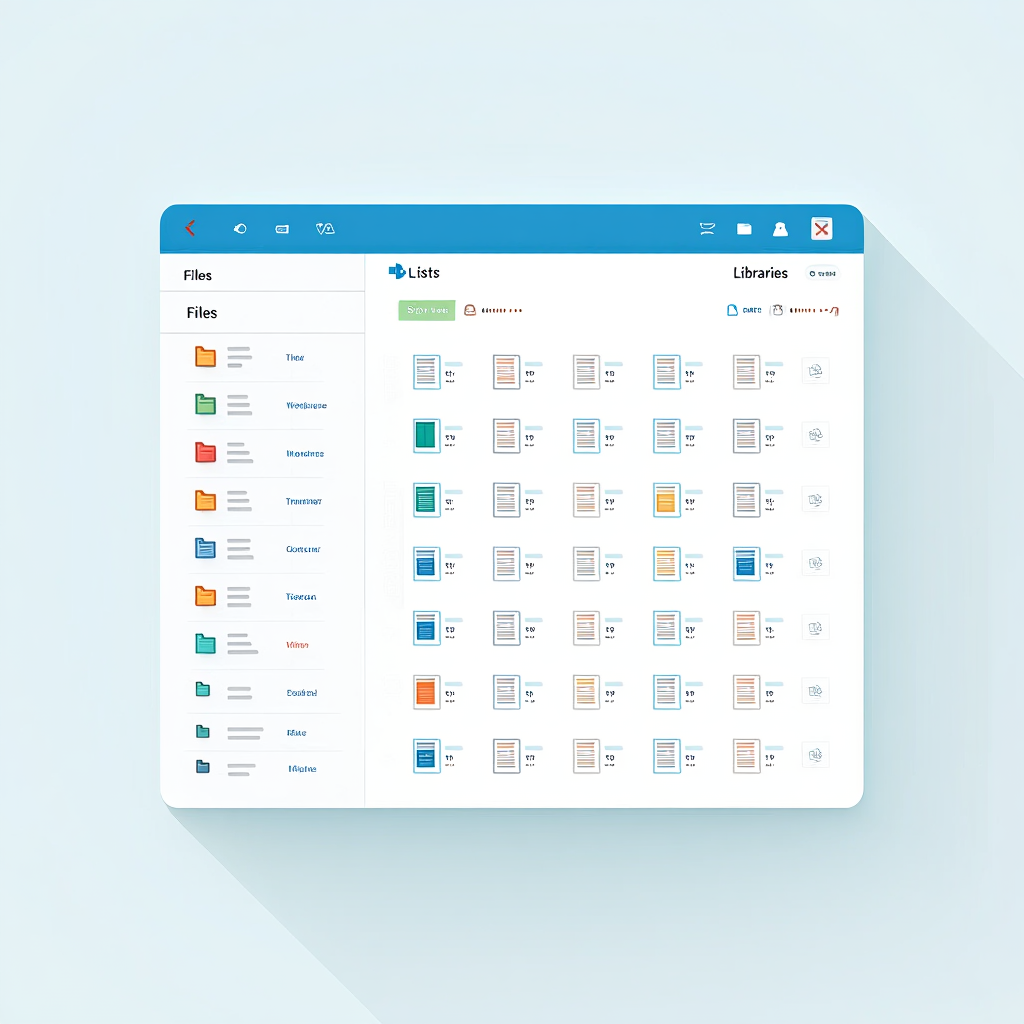
Manual archive SharePoint means physically moving or deleting documents manually. The specialist opens libraries, selects outdated files, and decides where they belong. This practical approach provides full control, but comes with hidden costs and risks.
How do companies manage to find a balance between time and effort? What problems do they face when the retention policy is set too broadly or too rigidly? And how can combining automated workflows with human judgment improve accuracy and compliance?
Studying these issues helps you understand the pros and cons of manual and automatic archiving, and draw conclusions about when a hybrid approach is appropriate for your SharePoint environment. At the end of this article, we’ve included a checklist with manual methods for archiving SharePoint content to help you keep your files local, maintain structure, and maintain access when needed.

Manual move and delete processes
Manual archiving is the most straightforward and familiar method. It starts with someone opening a document library, identifying outdated files, moving them to an archive library, and deleting them from active folders. Small teams and short-term projects often lean on this approach because it’s easy to start and doesn’t require technical changes.
The simplicity is appealing, but it comes with limits. As content grows, so does the time needed to sort through it. Every file depends on someone making the right call. If that call doesn’t happen, files stick around, taking up space and creating clutter.
Step-by-Step Guide to Manual Archiving
- Navigate to your SharePoint site and open the document library containing the files to archive.
- Select the outdated files by checking the boxes next to them.
- Click “Move to” or “Copy to” in the toolbar and choose the archive library or site as the destination.
- Confirm the move, ensuring permissions are preserved if needed.
- Verify the files in the archive location and delete any duplicates from the original library.
For a practical demonstration of moving files between libraries in SharePoint, watch this tutorial that illustrates the step-by-step process.
Why manual archiving can work
Manual archiving might seem old-school, but it still offers benefits that automation can’t always match. Here’s why some teams stick with it:
- Full control over file selection.
- Ability to review content before moving it.
- No need for complex tools.
- Flexibility for unusual situations.
- Best for small volumes of data.
Real-world scenarios
A small marketing agency with 15 employees relies on manual archive SharePoint processes to keep campaign assets organized. Every quarter, project managers meet to decide which files to keep, which to move, and which to delete. They value the personal review because creative work often has reuse potential.
In contrast, a mid-sized law firm using the same manual method runs into trouble. Case files are stored across multiple sites, and different teams archive on different schedules. This inconsistency leads to confusion over where documents live, slowing down client requests.
Government offices face another challenge. When budget restrictions prevent buying new automation tools, manual archiving becomes the default. But with high staff turnover, training gaps lead to missing records and accidental deletions that can have legal consequences.
Hidden costs of manual processes
Time spent sorting files adds up quickly. In small businesses, this often means pulling staff away from billable work. In larger organizations, the cost multiplies when dozens of employees each spend hours on repetitive archiving.
Errors are harder to spot until someone goes looking for a file that’s no longer there. Over time, these mistakes can erode trust in the system and create compliance risks. When dealing with growing volumes of content, learning the right way to archive SharePoint documents, lists, and entire libraries manually becomes essential to minimize errors and preserve important metadata. Lost documents in regulated industries can lead to audits, fines, or even lawsuits. For instance, a healthcare provider might face HIPAA violations costing up to $50,000 per incident if archived patient records are mishandled, highlighting the need for careful manual oversight.

Setting up retention policies in Microsoft Purview
For teams looking to remove guesswork, a retention policy SharePoint setup in Microsoft Purview offers a more structured option. These policies define how long files stay active, what happens when their time is up—whether they move to a compliance archive or are deleted—and which locations they apply to.
Setting one up in Microsoft Purview follows a clear flow:
- Open the Compliance Center.
- Go to “Retention Policies.”
- Create a new policy with a name and description.
- Set your conditions—for example, keep documents for five years.
- Choose the sites or libraries the policy applies to.
- Activate and save it.
Once active, the policy works in the background. A finance company, for instance, set a seven-year retention policy for accounting documents. Before, employees moved these files by hand. After switching to automated retention, documents went into a compliance archive automatically and were deleted on schedule, freeing up hours each month and reducing the chance of mistakes.
Fine-tuning retention rules
Not every department needs the same rules. In a corporate setting, the legal team might require documents to be kept for ten years to meet industry regulations, while marketing only needs to retain creative files for two years. Fine-tuning policies in Microsoft Purview lets each department follow its own timeline without affecting others.
In small businesses, fine-tuning might mean separating client contracts from general correspondence, ensuring only the critical documents remain long-term. In government offices, retention rules are often dictated by law, so customization focuses on making sure every rule matches the specific legislative requirements.
Common mistakes and risks
When setting retention policies, it’s easy to slip up. These common mistakes can cause real trouble if you don’t watch out for them:
- Applying one universal policy across all content types can cause early deletion of important files.
- Forgetting to update policies when regulations change can lead to compliance violations.
- Not testing policies before full rollout may result in accidental removal of active documents.
Each of these errors can cause operational slowdowns, compliance penalties, or the need for costly data recovery.
Building workflows with Power Automate
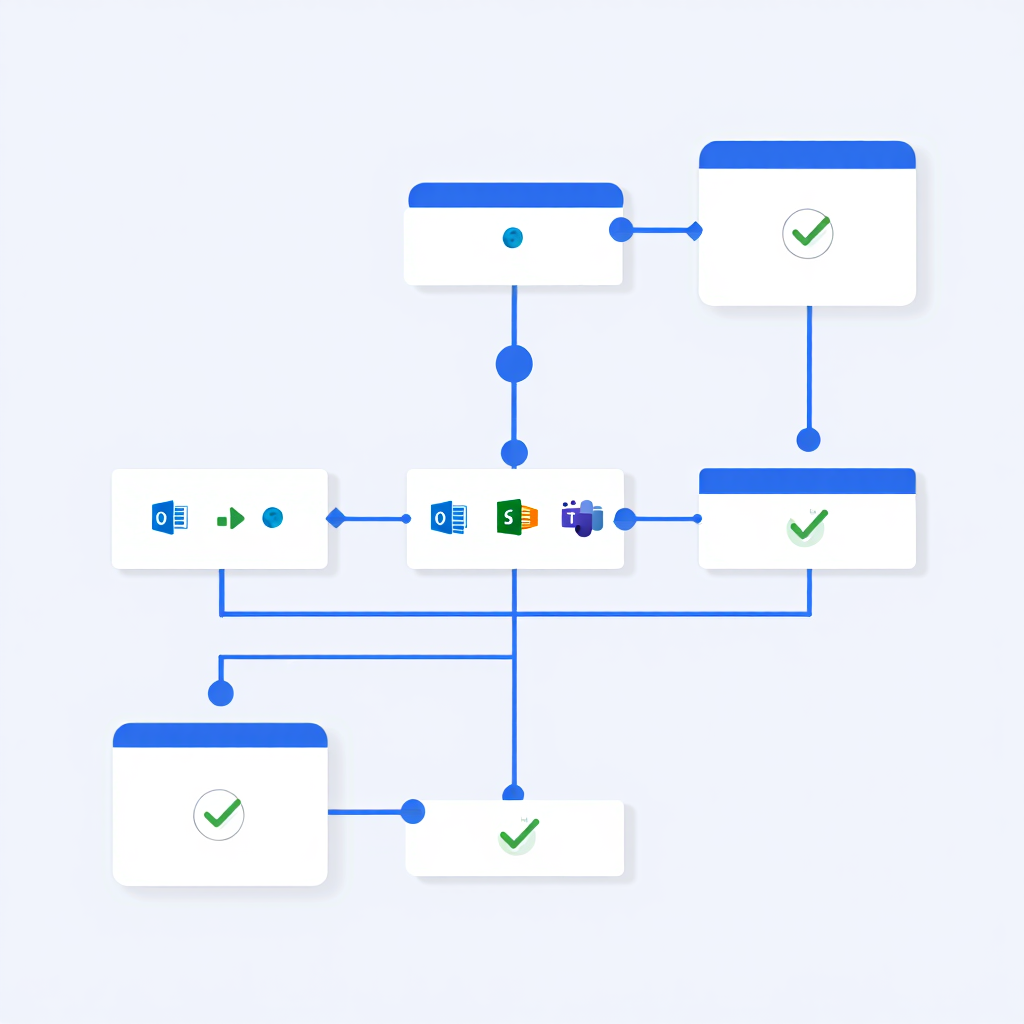
For more flexibility, workflow archiving with Power Automate takes things beyond standard retention policies. You can set custom triggers, such as file age, metadata changes, or a change in document status, and build step-by-step actions that happen automatically. For more advanced archiving strategies, leveraging SharePoint’s Content Organizer and metadata can greatly improve how files are routed and stored automatically.
| Feature | Manual Archiving | Retention Policy | Power Automate Workflow |
|---|---|---|---|
| Setup complexity | Low | Low–medium | Medium–high |
| Flexibility | High for unique cases | Limited rules | Highly customizable |
| Handling exceptions | Full manual control | Minimal | Easy to manage |
| Trigger types | User-initiated | Time-based only | Metadata, events, status |
| Integration with other apps | No | No | Yes |
| Maintenance needs | Ongoing manual effort | Minimal | Periodic updates |
Combining automation with human review
A hybrid example looks like this: A manufacturing company sets a workflow where purchase orders move to an archive library after 120 days without updates. Before the move, the system emails the procurement manager for approval. If approved, the document moves automatically; if rejected, it stays active. This keeps automation running but allows people to stop incorrect moves.
Small businesses might build simpler workflows, like moving files older than a year into a compliance archive, while still letting managers check the folder once a month. Corporations use more complex triggers, combining metadata like “project status” and “region” to ensure files end up in the right archive.
Mistakes to watch for:
- Forgetting to update workflows when SharePoint site structures change.
- Over-automation, where files move before users are ready.
- Lack of testing, leading to broken triggers and missed archiving.
These issues can result in misplaced files, broken compliance archive processes, or loss of trust in the system.

Comparing ease, control, and scalability
According to AIIM’s 2023 State of the Intelligent Information Management Industry report, many organizations are struggling with information sprawl and an increasing number of content systems, while only a minority have their document and content management platforms fully integrated with core business applications.
The report emphasizes that stronger information governance and lifecycle practices — including automated archiving and disposition in platforms such as SharePoint — are essential levers for improving information retrieval, reducing storage overhead, and lowering risk, even though it does not quantify specific percentage improvements in speed or cost. (2023, AIIM — Association for Intelligent Information Management)
However, the process of establishing and cataloging what constitutes a record needs to be automated and happen by default.”- Tori Miller Liu, President & CEO of the Association for Intelligent Information Management (AIIM), certified information professional (CIP).
Choosing the right approach often comes down to three factors—how easy it is to manage, how much control you need, and how well it scales.
Ease of use
Manual archive SharePoint processes are quick to start—no admin permissions or special skills required. But they become harder to maintain as libraries grow. Automated methods take longer to set up but run quietly in the background afterward.
Control
Manual methods put you in the driver’s seat for every file. Retention policies and workflow archiving require trust in the rules and triggers you’ve built.
Scalability
Scalability matters because what works for a handful of files won’t always handle thousands without hiccups. Here’s how each method measures up when content volume grows:
- Manual: Best for small libraries, becomes slow at scale.
- Retention policy SharePoint: Handles large volumes well but struggles with exceptions.
- Workflow archiving: Scales smoothly with adaptable rules.
The hybrid approach
Many organizations mix methods to cover all bases:
- Manual archiving for sensitive or unique data.
- Automated retention policies for high-volume, routine content.
- Compliance archive for documents tied to legal requirements.
By combining strategies, teams keep the control they want while gaining the efficiency they need.
Use this customizable table to evaluate archiving methods for your organization.
| Criterion | Manual Archiving Score (1-10) | Retention Policy Score (1-10) | Workflow Archiving Score (1-10) | Notes |
|---|---|---|---|---|
| Ease of Use | ||||
| Control Level | ||||
| Scalability | ||||
| Cost Implications | ||||
| Compliance Fit |
In the video, you can learn advanced document retention and archiving management using Power Automate. The author demonstrates how to import and configure workflows, as well as how to apply logging for debugging and tracking errors. You will see how to send notifications to users when archiving documents. The video concludes with a demonstration of the configured process in action and receiving an archiving notification.
FAQ
What happens to file permissions when I manually archive?
It depends on the destination. If you move a file to a different library on the same site, it usually keeps its unique permissions. If you move it to a different archive site, the file will inherit the permissions of that new site. You must always check permissions after moving critical documents.
Will all my old links break if I move an archive file?
Yes, in almost all cases. Manually moving a file to a new library or site changes its URL. Any existing bookmarks, or links in emails or other documents pointing to the old location, will break. SharePoint does not automatically redirect these old links.
Can I still find my files in search after I archive them?
It depends on where you archive them. If the archive is a library on your current site, yes, they will appear in search. If you move files to a separate archive site, users must search that specific site to find them. They will no longer appear in search results from the original site.
Does manual archiving save my company money on storage?
No, not directly within SharePoint Online. Your tenant has a total storage quota that is pooled across all your sites. Moving a 1GB file from an active site to an archive site still uses 1GB of your total pooled storage. It only cleans up the workspace; it does not reduce your bill.
How hard is it to restore a manually archived file?
Restoring the file is simple; it is just another manual move. You go to the archive, find the document, and use the “Move to” command to send it back to the active site. The hardest part is usually remembering which archive site or library you put the file in years ago.
Conclusion
Manual archive SharePoint workflows give you hands-on control, making them a good fit for small teams or situations where judgment calls matter. Retention policy SharePoint automation in Microsoft Purview adds structure, consistency, and compliance. Workflow archiving with Power Automate takes it further, letting you customize triggers, add approvals, and integrate with other tools.
The right choice depends on your library size, compliance archive requirements, and how much time you can put into setup. Many teams start manually, then shift toward automation as their content grows—often landing on a hybrid solution that blends oversight with scalability. You can use this checklist to make sure your manual archiving is thorough, your archived content remains accessible, and you avoid common pitfalls when managing SharePoint archives manually.

Sources
- Research: 2023 (AIIM). State of the Intelligent Information Management Industry Report.
- Quotes: Tori Miller Liu (2025, AIIM Blog). AI and Information Management in the Capital: What Keeps Leaders Up at Night.