This article was last updated in January 2026
The process of moving documents and information through an organization for review and formal sign-off is a cornerstone of business. Yet, it can often become a slow, confusing bottleneck. Many companies rely on email chains and manual tracking, leading to frustrating delays and lost visibility. That’s why building a robust, custom Power Automate approval workflow is so important for modern organizations. This solution offers a way to define, streamline, and standardize those essential steps.
A Power Automate approval workflow is essentially a fully automated, multi-step process for getting official sign-off on documents, requests, or business decisions. It replaces messy paper trails and email back-and-forth with a structured, digital route. By integrating this system with SharePoint, you create a single source of truth for documents and the process itself.
Businesses often see a significant reduction in process time. The following guide will walk you through creating an effective, practical workflow automation solution. To help you deploy this solution successfully, you can download a complete technical checklist at the end of this article.
Before diving into the design details, watch this step-by-step tutorial video to see a basic Power Automate approval workflow in action and get inspired to build your own.
Designing Efficient Approval Processes
The secret to a successful automated approval system isn’t the technology; it’s the design. Before you even open Power Automate, you need a clear, well-defined map of your current and desired document approval process. You can’t automate chaos, so take time to understand the necessary steps and decision points. This thoughtful groundwork is what transforms a simple flow into a truly impactful piece of workflow automation.
Mapping Your Current System
Start by documenting everything that happens now. Identify all the people, departments, and criteria involved in the existing document approval process. Who starts the review? Who needs to sign off next, and under what conditions? For instance, a purchase request under $1,000 might only need a manager’s signature, while one over $10,000 requires finance and executive consent. Taking this inventory helps you uncover hidden dependencies and unnecessary steps that you can eliminate when building automated approvals.
Key Considerations for Automated Approvals
Effective design hinges on clarity and simplicity. Every step should have a clear owner and a definitive outcome—Approved, Rejected, or Rework Required. Ambiguous steps will bog down your automated approvals just as easily as manual steps. Think about dynamic assignments; instead of hardcoding a person’s name, assign the clearance to a role like “Department Manager,” which Power Automate can find automatically.
When building a Power Automate approval workflow, you need to define three things for every stage:
- Trigger: What action starts this process? (e.g., a file is uploaded to a SharePoint folder, or a list item is created).
- Approver: Who is responsible for the decision at this stage? (e.g., a specific person, a group, or a dynamically found manager).
- Action: What happens after the decision? (e.g., move the file, send a notification, or advance to the next stage).
This structured approach ensures that your final system of automated approvals is logical and resilient.
Define Approval Hierarchy: Never send a high-value request to a low-level approver.
This is the golden rule for process design, preventing future headaches with your workflow automation.

Building Multi-Stage Approval Flows
Most business decisions aren’t one-and-done; they need a series of reviews. Creating a multi-stage Power Automate approval workflow is a common scenario that adds significant practical value. These sequential workflows ensure that necessary checks are completed in the correct order, which is essential for compliance and good governance.
Implementing Sequential and Parallel Approvals
You have two main structural options when designing a complex workflow: sequential and parallel. Sequential approvals mean one person must approve before the request moves to the next. This is typical for budget reviews where a line manager signs off before the finance director. Parallel approvals mean multiple people receive the request simultaneously, and the flow moves forward only when a defined condition is met (e.g., all approvers respond, or the first person responds).
A smart Power Automate approval workflow will often combine both. Imagine a contract: it may need sequential legal review, followed by parallel sign-offs from two different department heads. Use the ‘Start and wait for an approval’ action in Power Automate, selecting either ‘First to respond’ (for parallel) or ‘Approve/Reject – Everyone must approve’ (for a stricter parallel). Automation with Power Automate reduces human errors in repetitive tasks, enhances compliance through standardized workflows, and can save employees up to 250 hours per year in high-impact roles. (2024, Forrester Consulting) This shows the real-world impact of thoughtful design.
Here are key actions you will use in Power Automate:
- Initialize variable: Define temporary storage for data, like the approval status or a dynamically found approver’s email.
- Get manager (V2): A critical action to dynamically find the supervisor of the person who started the flow, ensuring your workflow automation is future-proof.
- Condition: The decision-maker of your flow. This is where you check the outcome of the approval (e.g.,
if Response is equal to 'Approve'). - Scope: Group related actions together. This keeps complex flows clean and makes troubleshooting much easier.
Handling Conditional Routing and Escalation
Truly effective automated approvals feature conditional routing. This means the path the request takes depends on the content of the request itself. For example, use a Condition action to check a field from your SharePoint item, such as “Amount Greater Than $5,000.” If true, route the request to a high-level approver; if false, send it to a lower-level one.
How to Implement Dynamic Approver Logic in Power Automate
This detailed process shows how to build an adaptable Power Automate approval workflow that doesn’t rely on manually updated names.
- Start with the Trigger: Begin by setting the trigger to “When an item is created” in your SharePoint list. This kickstarts the entire document approval process.
- Get Requestor Details: Use the “Get user profile (V2)” action. Use the Created By Email dynamic content from the SharePoint trigger to look up the person who submitted the item.
- Get the Requestor’s Manager: Add the “Get manager (V2)” action. Use the Manager (V2) user principal name dynamic content from the previous step as the input. This retrieves the correct approver dynamically.
- Initiate Conditional Approval: Insert a Condition action to check the value of the document. For example, check if the SharePoint column ‘Value’ is greater than 1000.
- Path for Low Value (If No): If the value is low, use the “Start and wait for an approval” action. Assign the approval to the email address retrieved from the Get manager (V2) action.
- Path for High Value (If Yes): If the value is high, use the “Start and wait for an approval” action, but assign it to a different approver, like a pre-defined Finance Group email.
- Update Status: After the approval is complete in either path, use the Update item action to write the final decision and approver’s name back to the SharePoint item.
This proactive approach prevents bottlenecks and keeps your workflow automation running smoothly.
“Power Automate has changed our culture, as people are now thinking about innovation and continuous improvement. Our C-suite is seeing some of the use cases that people are building, and they’re saying, ‘Wow, that is game-changing.’” — Vice President, Entertainment industry (experienced in deploying automation solutions across large teams).
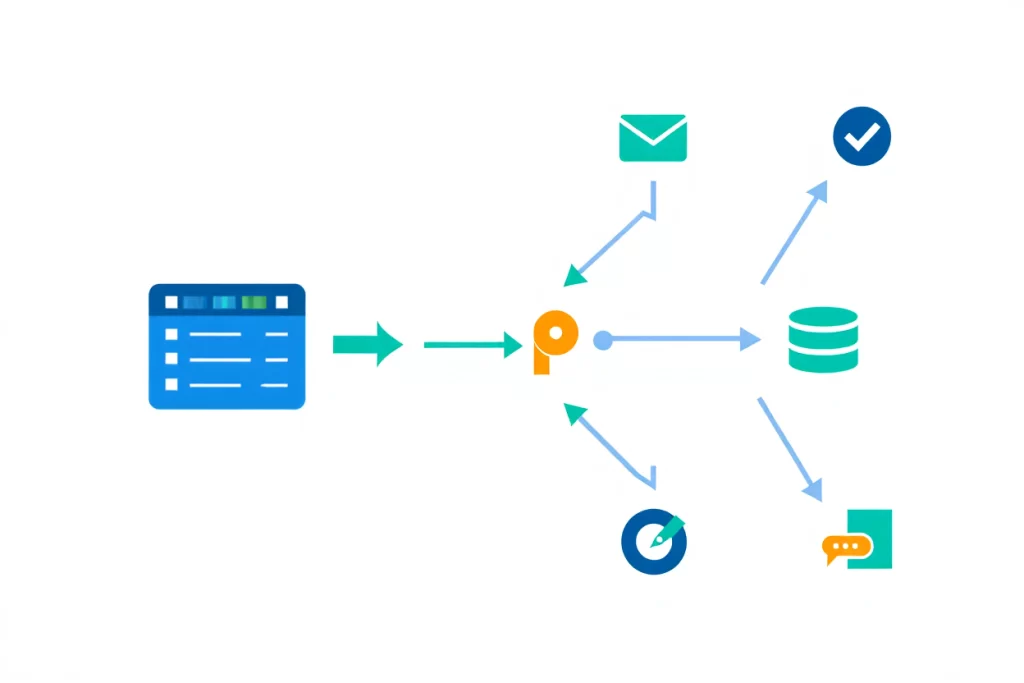
Integrating with SharePoint Document Libraries
SharePoint is an ideal home for your document approval process because it provides centralized storage, version control, and metadata capabilities. This deep integration is where Power Automate truly shines, turning a simple file storage location into a dynamic processing engine.
Setting Up the SharePoint Environment
To maximize the power of your Power Automate approval workflow, make sure your SharePoint document library is set up correctly. Beyond the file itself, use columns to capture key metadata that will drive the approval logic. Examples include “Project Value,” “Department,” or “Approval Status.”
| SharePoint Column (Metadata) | Power Automate Usage | Practical Benefit |
| Document Type (Choice) | Used in a Switch control to determine approver groups. | Ensures specific documents (e.g., HR policies) go to the right specialist. |
| Project Value (Number) | Used in a Condition action to set different approval limits. | Routes high-value requests to senior management. |
| Current Approver (Person) | Updated after each stage using the ‘Update file properties’ action. | Provides real-time visibility to users without needing to check the flow run history. |
| Approval Comments (Multi-line Text) | Writes the approver’s comments back to the file properties. | Creates a permanent audit trail directly on the document. |
For those looking to expand beyond basic approvals, exploring advanced SharePoint Power Automate workflows can help optimize error handling and integrations.
Triggering Flows from Documents
The most common trigger for a document approval process is when a file is created or modified in a SharePoint library. You’ll use the “When a file is created (properties only)” trigger in Power Automate. The “properties only” is a smart choice because it retrieves the critical metadata (like the file name and the values of your custom columns) without downloading the entire file right away, which is more efficient. This is a critical factor in scaling your automated approvals.
You can also use a flow to check for required metadata before initiating the review. For example, if a document is uploaded without a “Project Value,” the workflow automation can send an email to the uploader asking them to complete the missing information before the Power Automate approval workflow even starts. This is a great way to enforce data quality from the start.
Always choose properties-only triggers in SharePoint to boost flow performance.
This simple choice keeps your system running quickly and efficiently.

Managing Approval Timelines and Escalations
A slow approval is a rejected opportunity. Effective automated approvals include rigorous tracking and escalation to ensure requests don’t fall into a black hole. This focus on service-level agreements (SLAs) is vital for maintaining business velocity. When you implement a Power Automate approval workflow, you are making a commitment to speed.
Defining and Enforcing Service-Level Agreements (SLAs)
Every stage of a Power Automate approval workflow should have a defined maximum response time, or SLA. This is not just a target; it’s a rule built into the flow. If a manager has 48 hours to approve an expense report, the flow must be configured to check that timer. Without this structure, your workflow automation will eventually fail to deliver on its promise of efficiency.
Use the Delay until or Do until actions in Power Automate to manage the timeline. For instance, after sending the approval request, use a Delay of 48 hours. Then, use a Condition to check if the approval has been completed. If it hasn’t, the flow moves into an escalation path.
Here are key escalation strategies:
- Direct Reminder: Send a high-priority email or a direct message via Teams to the delinquent approver.
- Manager Notification: Inform the approver’s supervisor that the task is overdue.
- Automatic Reassignment: Use the ‘Reassign approval’ action to send the task to a pre-defined backup approver or a pool of reviewers.
Troubleshooting Common Approval Issues
Even well-designed flows can encounter hiccups. Here are key tips:
- Permission Errors: If approvals fail to start, check SharePoint list permissions using ‘Get item’ action to verify user access.
- Timeout Problems: Adjust ‘Delay until’ to extend beyond 48 hours if needed, and add a fallback email notification.
- Dynamic Manager Lookup Fails: Use a condition to handle null responses from ‘Get manager (V2)’, routing to a default approver like HR. Test your flow in a sandbox environment before going live to catch these early.
Audit Trails and Transparency
One of the biggest advantages of automated approvals is the built-in audit trail. Every action—who approved, when they approved, and any comments they provided—is logged within the flow run history. However, flow history is only kept for a limited time, usually 28 to 30 days. This means you need a more permanent storage solution for the document approval process details.
Therefore, a crucial piece of practical advice is to record the final outcome and history back into the SharePoint item. After the approval is completed, use the Update file properties action to write the following details into your custom columns:
- Final Decision (Approved/Rejected)
- Date of Completion
- Approver Name
- Approver Comments
Always write the approval history and final outcome back to the SharePoint list or library.
This process ensures that a permanent, easily searchable record of the entire document approval process lives right alongside the document itself. To further assist users and reduce common inquiries, consider providing resources to answer frequently asked questions about the approval process. This is critical for internal audits and compliance.
FAQ
How to ensure my approval requests look professional in Outlook and Teams?
You should use Markdown within the ‘Start and wait for an approval’ action’s Details field. Markdown allows you to format the request with headings, bold text, and bullet points, making the approval request easy to read and highly professional. This small detail significantly improves the user experience for the reviewer.
Why is using “Get manager (V2)” better than hardcoding the approver’s email?
Using the dynamic action “Get manager (V2)” guarantees the correct person receives the request, even if there are organizational changes, promotions, or departures. Hardcoding an email address breaks the workflow when that person leaves, requiring manual updates. Dynamic assignment makes your workflow automation resilient and self-correcting.
What better approach is there for managing different approval levels based on monetary value?
The best approach is to use a Condition action in Power Automate with a Nested Condition (a second condition inside the first one). The first condition can check for a mid-level threshold (e.g., Value > $1,000), and the second condition (nested inside the ‘If Yes’ branch) can check for a high-level threshold (e.g., Value > $5,000). This creates a clear hierarchy for your Power Automate approval workflow: Low, Medium, and High, each routed to the appropriate authority.
You can see a practical example of a Power Automate approval workflow in this video. This video demonstrates how to build a multi-level approval workflow in Power Automate using SharePoint, which is highly relevant to this article’s topic:
The creation of a custom Power Automate approval workflow coupled with SharePoint isn’t just a technical upgrade; it’s a fundamental change in how your organization gets things done. It allows you to move away from error-prone, manual processes toward intelligent, structured, automated approvals. By focusing on clear design, effective multi-stage logic, and robust escalation, you can build a system that not only saves time but also provides the visibility and compliance assurance your business needs to thrive. It’s time to stop chasing signatures and start letting the flow work for you.
You’ve walked through the complex terrain of designing and building a multi-stage approval flow, from setting up dynamic routing to managing crucial escalations. But let’s be honest: keeping track of every metadata column, trigger condition, and SLA timeout can be overwhelming when you’re live-building a new system. That’s why we created a hands-on, actionable checklist.

Sources
- 2024, Forrester Consulting. The Total Economic Impact™ Of Microsoft Power Automate.
- Vice President, Entertainment industry, 2024, The Total Economic Impact™ Of Microsoft Power Automate.
- Flow history retention: 28 days, Microsoft Learn, Manage cloud flow run history in Dataverse.