
This article was updated in January 2026
Power Automate SharePoint archive is an automated solution for organizing and long-term storing SharePoint data using flexible flows and customized scenarios. It helps reduce the load on active sites, optimize performance, and speed up access to important archived documents. With flow automation integration, you can set custom archiving rules and metadata, apply ready-made templates, and manage the data lifecycle without manual intervention. Ready to learn how to improve corporate file management, create a flow, and avoid setup errors?
For your convenience, there’s a checklist at the end of this article that will help you set up Power Automate flows to automatically and securely archive old SharePoint files and folders.
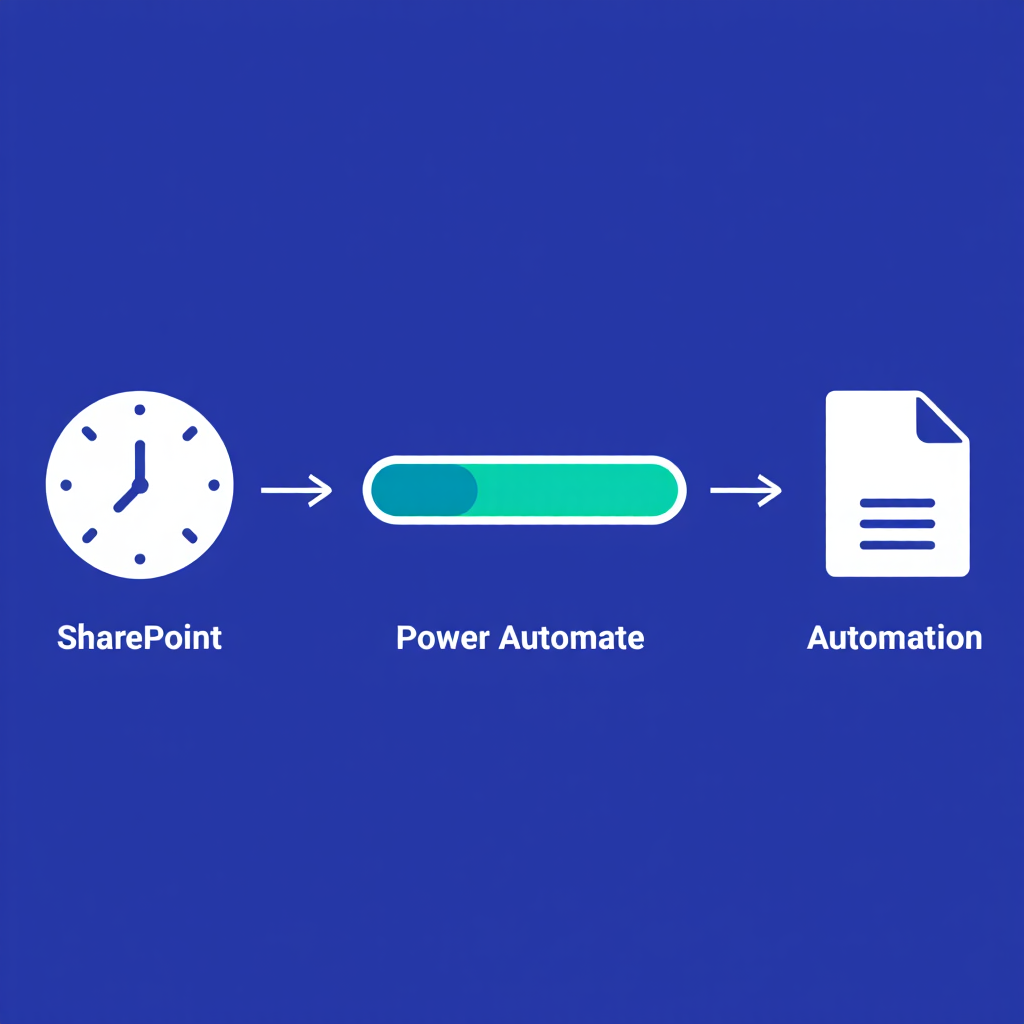
Why Use Power Automate for Archiving?
Power Automate simplifies managing SharePoint data. It connects seamlessly to lists and libraries, automating tedious tasks like archiving old files. Instead of wasting hours on cleanup, users create a Power Automate SharePoint archive flow once and let it run. This saves time and keeps sites fast. Teams often find that a document library, once cluttered and slow, becomes efficient with a Power Automate SharePoint archive flow.
Saving Time with Automation
Manually archiving files is a hassle. Users must locate old items, transfer them to another list, and remove them from the original. A Power Automate SharePoint archive flow handles this in minutes. Teams have reduced weekly cleanup from hours to nothing using flow automation. The system identifies old files and relocates them without any manual effort. This efficiency transforms daily workflows.
Boosting SharePoint Performance
Overloaded SharePoint lists hinder performance. When thousands of items accumulate, searches and filters lag. A Power Automate SharePoint archive flow keeps active lists compact. In projects with libraries exceeding 10,000 files, an archive flow template doubled site speed. It’s like tidying a crowded workspace—everything runs smoother. According to Microsoft guidelines, SharePoint lists can handle up to 30 million items, but operations slow down beyond the 5,000-item List View Threshold (LVT). Automating archives helps maintain performance by keeping active lists compact.
“Through 2025, poor data quality will persist as one of the most frequently mentioned challenges prohibiting advanced analytics (e.g., AI) deployment.” Said by Gartner analysts during the Gartner Data & Analytics Summit keynote. Gartner is a leading research and advisory company.
Customizable for Any Need
Power Automate offers flexibility. Users can design flows to archive based on dates, statuses, or other criteria. For teams needing to archive only “Completed” tasks, a Power Automate SharePoint archive flow targets those items precisely. This adaptability suits any SharePoint setup, no matter the complexity.
Scaling with Your Data
As SharePoint sites expand, archiving needs grow. Power Automate manages large datasets effectively. Sites with 50,000 items remain manageable with a Power Automate SharePoint archive flow. Flow automation ensures performance optimization as data volume increases. It’s like a system that scales with organizational growth.
What Recent Studies Say
Recent research shows why tools like Power Automate are becoming indispensable for archiving in SharePoint. Gartner’s 2025 research on AI and data strategy stresses that organizations with automated, well-governed data workflows are better positioned to scale AI initiatives, because AI-ready data and embedded governance are now foundational requirements for AI, not optional add-ons (https://www.gartner.com/en/newsroom/press-releases/2025-08-05-gartner-hype-cycle-identifies-top-ai-innovations-in-2025) This is directly related to the automation of archiving processes in SharePoint. It simplifies information processing, provides quick access to it, and meets the requirements.

Creating an “Archive Older Than X Days” Flow
Setting up a Power Automate SharePoint archive flow is straightforward with clear steps. The system identifies old items, copies them to an archive list, and removes them from the original. Early attempts may hit snags, but they lead to reliable operations. Here’s how to build an archive flow template for items older than 90 days.
Step-by-Step Flow Setup
Begin by creating a new flow in Power Automate. Select a scheduled trigger for daily or weekly runs. Add a “Get items” action to retrieve data from the SharePoint list. Apply an OData filter to select items older than 90 days. Include a “Create item” action to transfer those items to the archive list. Conclude with a “Delete item” action to clear them from the original list. Testing on a small list confirms the flow automation works seamlessly.
Key Actions for the Flow
The archive flow template requires these steps:
- Trigger: Schedule it for a set time, like 2 AM daily.
- Get Items: Retrieve items using an OData query like Created lt ‘@{addDays(utcNow(), -90)}’.
- Create Item: Transfer data to the archive list, matching fields like Title and Created Date.
- Delete Item: Remove the original item using its ID to keep the main list clean.
This structure ensures flow automation operates consistently, maintaining data organization.
For implementing custom archiving policies based on modification dates, check out this practical demonstration.
Avoiding Setup Mistakes
Flows can fail if too many items are retrieved. SharePoint’s 5,000-item limit triggers errors. Set a “Top Count” of 100 in the “Get items” action. Ensure the archive list mirrors the original list’s columns. Missing a column can halt the flow. Verifying the archive flow template prevents these issues.
Testing Before Launch
Test the flow on a small dataset first. Use a dummy list with 10 items and run the flow manually. Verify that items transfer and delete correctly. Skipping this risks missing items due to a faulty filter. Testing the Power Automate SharePoint archive flow ensures it’s production-ready.
Integrating Choice/Status Columns and Metadata
Archiving goes beyond moving items. Preserving details like choice columns or metadata, such as item creators, is essential. Power Automate manages this, but it demands attention. Teams often need to retain task statuses in archives. Here’s how a Power Automate SharePoint archive flow handles these elements. Once your archived data is structured with preserved metadata, visualizing it can provide deeper insights into trends and usage patterns.
Mapping Choice Columns
Choice columns, like a “Status” dropdown, can complicate archiving. Power Automate must map these values accurately. In the “Create item” action, select the choice column and link it to the dynamic content from the “Get items” step. Mismatched status values cause failures. Ensure the archive list’s choice options match the original list’s.
Preserving Metadata
Metadata like “Created By” or “Modified Date” supports tracking and audits. Power Automate doesn’t transfer these automatically. Create custom columns in the archive list, such as “Original Author” and “Original Created Date.” Map these to the “Author” and “Created” fields in the flow. Teams find this setup invaluable during compliance checks, enhancing the archive flow template.
Field Mapping Table
Here’s a guide to mapping fields between lists:
| Original List Field | Archive List Field | Dynamic Content |
| Title | Title | Title |
| Status (Choice) | Status | Status Value |
| Created By | Original Author | Author DisplayName |
| Created | Original Created Date | Created |
| Modified | Original Modified Date | Modified |
This table ensures flow automation preserves critical details accurately.
Handling Complex Columns
Multi-choice columns or attachments require extra steps. For multi-choice fields, use a “Select” action to format data before copying. Attachments need a “Get attachments” action and a loop to transfer each one. Issues arise when attachments fail to archive. Adding a loop to the flow automation resolves this, though it requires careful setup. Test these steps on a small dataset to avoid errors.
Ensuring Data Integrity
Preventing data loss during archiving is critical. Verify that all fields, including custom metadata, transfer correctly. Flows may skip fields if mapping is overlooked. Test with a few items and compare the archive list to the original. This ensures the Power Automate SharePoint archive flow maintains complete data integrity.

Testing, Scheduling, and Error Handling Tips
A Power Automate SharePoint archive flow must be dependable. Testing, scheduling, and error handling ensure reliability. Overlooking these steps leads to failures, so here’s how to optimize for performance optimization.
Testing Your Flow Thoroughly
Run a manual test before scheduling. Use a small list with a few items. Set the “Top Count” to 10 in the “Get items” action to avoid overload. Check the run history to confirm items moved correctly. Missing logs can hide errors, like items skipped due to a bad filter. Thorough testing prevents these issues.
Scheduling for Consistency
Scheduling keeps the archive flow template running regularly. Set it for daily, weekly, or monthly execution based on needs. A 2 AM slot avoids peak hours. Use the “Recurrence” trigger in Power Automate to set the interval. For fast-growing lists, a daily schedule maintains site efficiency without manual work.
Error Handling Strategies
Errors can disrupt flow automation. Here’s how to manage them:
- Add a Terminate Action: Halt the flow and log errors if it fails.
- Use Conditions for Validation: Verify item existence before creating or deleting.
- Send Error Notifications: Include an email action to alert on failures.
- Limit File Size: Keep files under 1 GB to avoid issues.
- Check Permissions: Ensure Power Automate has access to both lists.
Large files can crash flows without size checks.
Monitoring for Performance
Monitor the flow for performance optimization. Review the run history weekly for failures. Adjust the “Top Count” or filter query as lists grow. Flows may fail when lists reach 20,000 items. Updating the query resolves this. Regular checks keep the Power Automate SharePoint archive flow reliable.
Scaling for Large Lists
As lists expand, flows need adjustments for performance optimization. Enable pagination in the “Get items” action to handle thousands of items. Sites with 100,000 items remain stable with pagination. Splitting large flows into smaller ones also helps. This keeps the archive flow template efficient for massive datasets.
Here’s a helpful video that walks you through the process of archiving SharePoint list data using Power Automate. It provides clear, step-by-step instructions on setting up an automated flow to move old items to an archive, keeping your active lists clean and efficient. Whether you’re new to Power Automate or looking to streamline your SharePoint management, this tutorial covers the essentials to get you started quickly and confidently.
Michael Alex, How to Archive SharePoint List Data Using Power Automate | Step-by-Step Guide
FAQ
Does using Power Automate for archiving cost extra?
Yes, it can, but it is rare for simple archives. Your Microsoft 365 license includes a set number of flow runs. If your flow runs thousands of times per day across many items, you may hit these limits. This would require a premium Power Automate license, which costs extra.
Is there a limit to how many files my flow can archive at once?
Yes, the “Get items” action has a default limit of 100 items. You must go into the action’s settings and enable “Pagination” to process more. Even with pagination, a single flow run is typically limited to processing 100,000 items from one library at a time. As of 2026, these limits remain per Microsoft documentation.
Does my archive flow also copy the file’s version history?
No, a standard flow does not. The basic “Copy file” or “Move file” action only transfers the current published version. The file’s version history is left behind and lost. Preserving version history requires a much more complex flow using HTTP calls to the SharePoint API.
Will my archive flow slow down the site for my users?
No. The flow runs on Microsoft’s background servers, not in the user’s browser. Your users will not experience any site slowdown or lag. If a flow processes too much data too quickly, SharePoint may “throttle” the flow itself, making it take longer to finish.
What happens if my archive flow fails halfway through?
The flow will simply stop, and you will get an error notification. Items that were successfully moved before the error will remain in the archive. Items that had not been processed yet will remain in the original library. You must fix the error and re-run the flow to finish the job.
Conclusion
A Power Automate SharePoint archive flow is essential for keeping SharePoint lists clean and efficient. It saves time, enhances performance, and manages complex data like choice columns and metadata. Creating an archive flow template requires effort, but testing and error handling ensure reliability. Teams transition from hours of manual cleanup to automated systems. Start small, test carefully, and adjust as needed. With these steps, SharePoint sites stay organized, freeing up focus for critical tasks.
We offer a checklist. If this topic is relevant to you, it will help reduce manual cleanup, maintain folder structure, and ensure proper storage of archived content without disrupting your active workflows. We’d be happy to help you find this document useful. You can download it if needed.

Sources
- 2025, Gartner. Gartner Identifies Three Areas to Help Data & Analytics Leaders Scale AI
- Gartner analysts, 2025, Gartner Data & Analytics Summit Keynote
- Microsoft, 2026, SharePoint limits – Service Descriptions
- Microsoft, 2026, Overview of large lists and libraries


