The article was edited in January 2026
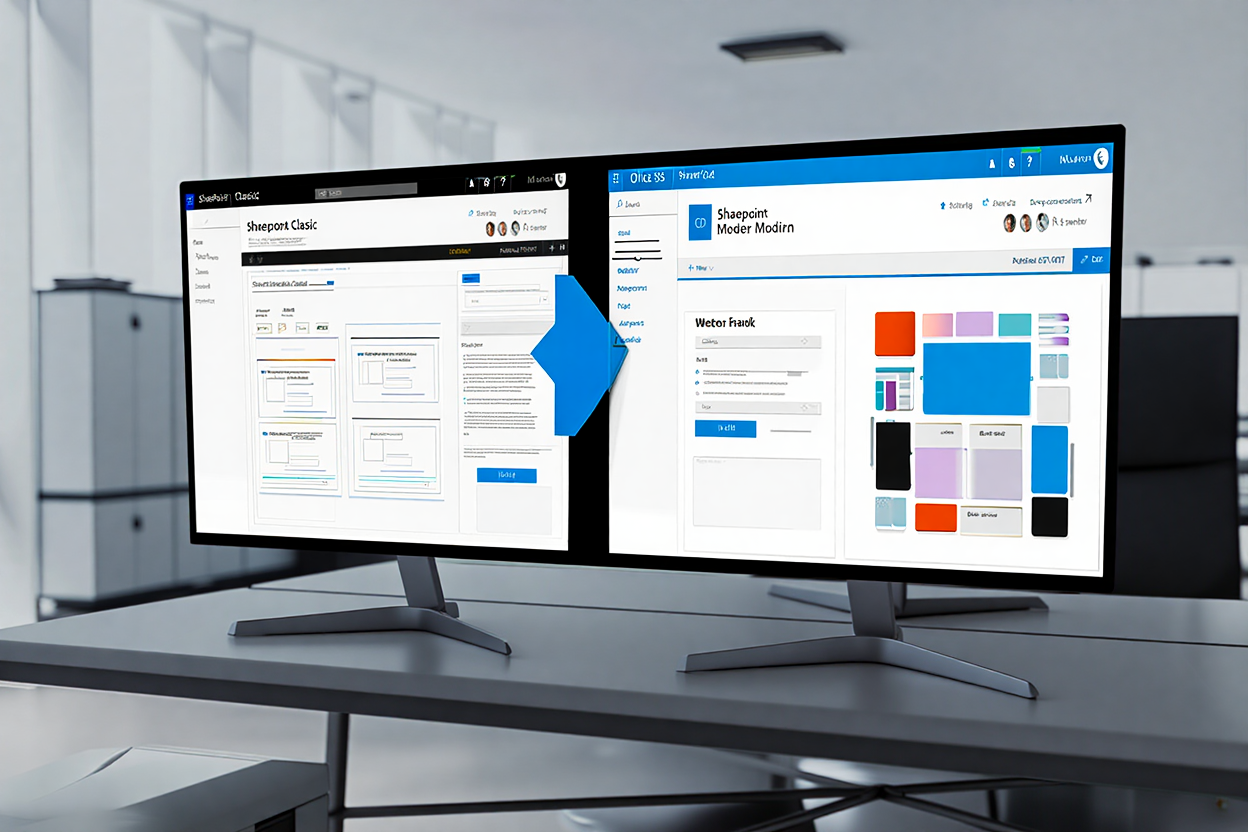
The move from Classic to Modern SharePoint can feel like a major undertaking. Many organizations still rely on legacy sites, comfortable with the familiar but missing out on a more intuitive, flexible, and integrated experience. The shift is about more than just a new look; it’s about fundamentally improving how teams collaborate and access information. A successful SharePoint migration modern process transforms your digital workspace into a responsive, user-friendly environment that boosts productivity. This process involves a detailed assessment, careful planning, and strategic execution to transition your digital assets smoothly.
Understanding the core of this transition is key. SharePoint site modernization isn’t just a simple upgrade; it’s a strategic move to leverage a powerful suite of tools that integrate seamlessly with the broader Microsoft 365 ecosystem. This guide breaks down the journey from classic to modern, offering practical steps for a successful migration. We’ll explore everything from initial assessment and planning to the crucial post-migration validation, ensuring your team is set up for success in a truly modern digital workplace. Additionally, at the end of the article, you can find a detailed checklist to help you with your project.
Before diving into the assessment of your current environment, take a moment to see what a successful Classic to Modern migration looks like in practice. This short video from ShareGate provides a helpful overview and some practical insights to get you oriented:
Watching this will give you a clearer picture of the transformation possibilities and help frame your own migration goals.
Assessing Your Current Classic Site Environment
Before starting any migration, a thorough evaluation of the existing classic site environment is essential. This initial phase is not just about identifying what you have; it’s about understanding how it’s used, what can be improved, and what can be left behind. A comprehensive inventory allows you to map out a clear path forward, avoiding unexpected roadblocks during the actual transition. This critical first step sets the foundation for the entire SharePoint migration modern project.
Understanding Your Site’s Complexity
The first step in your assessment is to get a complete picture of your classic sites. This means digging into the structure, customizations, and content to understand the full scope of the migration. You need to identify every site collection, subsite, and list. Pay close attention to custom branding, master pages, and custom web parts, as these elements often don’t have a direct equivalent in the modern experience and will require rethinking. This detailed inventory is crucial for a successful site modernization. To make informed decisions about what to keep and what to rebuild, it helps to first understand the SharePoint classic vs modern debate.
Important deadline
Microsoft has confirmed that SharePoint Add-ins will fully retire on April 2, 2026, after which they will stop functioning in SharePoint Online. Any custom solutions relying on the add-in model must be migrated to SharePoint Framework (SPFx) or alternative approaches like Power Automate or external services to avoid disruption.
Consider creating an inventory spreadsheet that details each site’s URL, owner, purpose, last modified date, and level of customization. Tools like the SharePoint Modernization Scanner from Microsoft can be invaluable here, providing detailed reports on your environment’s readiness for a classic to modern transition. This analysis helps you pinpoint potential problem areas, such as complex workflows or unsupported scripts, that need to be addressed before you begin. For instance, are there intricate JavaScript customizations that will need to be rebuilt using the SharePoint Framework (SPFx)?
A comprehensive inventory of your classic environment is not just a preliminary step; it's the foundation for your entire migration strategy.
Evaluating Content and Usage
Once you have a map of your environment, the next step is to analyze the content within it. Not everything needs to make the journey. This is the perfect opportunity to clean house by identifying and archiving redundant, obsolete, or trivial (ROT) content. Look at site usage analytics to determine which sites are actively used and which are dormant. High-traffic, business-critical sites should be prioritized for the move.
Engaging with site owners and key users is vital during this stage. They can provide context that raw data can’t, explaining why a certain feature is critical or how a particular workflow supports their team. This feedback is essential for making informed decisions about what to migrate, what to rebuild, and what to discard.

Planning the Migration Strategy
With a clear understanding of your current environment, the next step is to build a comprehensive migration plan. A well-defined strategy is the roadmap that guides your team through the complexities of the transition, ensuring a smooth and efficient process. This phase is about making key decisions on the approach, timeline, and resources needed to execute the SharePoint migration modern project successfully. Without a solid plan, you risk delays, budget overruns, and a poor user experience.
Choosing Your Migration Approach
There are several ways to approach the migration from classic to modern. You can perform an in-place modernization, where you gradually update existing classic sites. Alternatively, you can opt for a phased migration, where you create new modern sites and selectively move content over. A third option is to start fresh with a completely new modern intranet and migrate only the essential content. The best approach depends on the complexity of your environment and your organization’s goals.
Here are some key factors to consider when selecting your approach:
- Complexity of Customizations: Highly customized classic sites often benefit from a phased approach, allowing you to rebuild functionality in a modern way.
- Content Volume: For environments with massive amounts of content, a gradual, phased migration can be more manageable.
- Business Disruption: If minimizing disruption is a top priority, an in-place modernization might seem appealing, but it can also be more complex to manage.
- User Adoption Goals: Starting with a clean slate can sometimes make it easier to drive user adoption of the new modern experience.
Migration Approach Comparison Table
Use the following comparison table to help decide the best migration approach for your environment.
| Approach | Pros | Cons | Best For |
|---|---|---|---|
| In-place modernization | Minimal disruption, leverages existing URLs | Difficult for highly customized sites | Sites with low-medium complexity |
| Phased migration | Controlled pace, allows testing and feedback | Longer overall timeline | Large environments with many sites |
| Start fresh (new modern site) | Clean architecture, higher user adoption | More upfront content selection and rebuild | Heavily customized or outdated classic sites |
Building a Project Roadmap and Timeline
Once you’ve settled on an approach, it’s time to build a detailed project plan. This should include a clear timeline with milestones, defined roles and responsibilities, and a communication plan to keep stakeholders informed. Break the project down into manageable phases, starting with a pilot migration of a few low-complexity, high-impact sites. This allows you to test your process, refine your use of migration tools, and gather valuable feedback before a full-scale rollout.
A successful site modernization is as much about managing people and expectations as it is about moving data and code.
As Jeff Teper, Corporate Vice President for Microsoft 365 and one of the original architects of SharePoint, noted in the foundational announcement of the modern direction:
“Team sites have always been at the heart of SharePoint, and we are making them stronger with modern, responsive experiences that empower teams to collaborate more effectively.”
Your roadmap should also account for training and user support. A successful site modernization is as much about people as it is about technology. Plan for training sessions, create user guides, and establish a support channel to help users navigate the new environment.

Using Microsoft Migration Tools Effectively
Microsoft provides a suite of tools designed to facilitate the transition from classic to modern SharePoint. Understanding and effectively utilizing these resources can significantly streamline the migration process, reduce manual effort, and minimize errors. While third-party migration tools are available, Microsoft’s native solutions are powerful, free, and deeply integrated into the ecosystem, making them an excellent starting point for any SharePoint migration modern project.
Leveraging the SharePoint Migration Tool (SPMT)
The SharePoint Migration Tool (SPMT) is a cornerstone of many migration projects. It is designed to migrate content from on-premises SharePoint sites and file shares to SharePoint Online. While it’s primarily for moving content into the cloud, it’s a key player when your classic sites are on-premises. SPMT allows you to move files, folders, and lists while preserving metadata, which is crucial for maintaining data integrity. For a successful migration, you need to understand how to configure these migration tools for optimal performance. This includes scheduling migration jobs during off-peak hours and running smaller, targeted jobs instead of one massive migration.
Step-by-Step: Running a Basic SPMT Migration
To give you a practical sense of the process, here is a simplified walkthrough for migrating a document library from an on-premises SharePoint 2013 site to SharePoint Online. This guide assumes you have downloaded and installed SPMT and have the necessary administrative permissions for both the source and destination.
Step 1: Launch SPMT and Sign In
First, open the SharePoint Migration Tool application. You will be prompted to sign in with your Microsoft 365 account that has SharePoint administrator privileges. This authentication is necessary for the tool to access your SharePoint Online environment as the destination.
Step 2: Select Your Source
The tool will ask you to select your source. For this scenario, choose “SharePoint Server.” You will then need to enter the URL of the classic SharePoint site that contains the document library you want to migrate. After entering the URL, provide the credentials for your on-premises environment.
Step 3: Choose Your Content
Once connected to the source, SPMT will display the contents of the site. Navigate to and select the specific document library you wish to migrate. You have the option to migrate the entire library or select specific folders within it. For this example, select the “Shared Documents” library.
Step 4: Specify the Destination
Next, you’ll define the destination in SharePoint Online. Enter the URL of the modern SharePoint site where you want the content to land. After that, you’ll be able to select a specific document library within that modern site to serve as the destination.
Step 5: Configure Migration Settings
Before starting, review the settings. You can configure options such as whether to migrate permissions, version history, and how to handle potential name clashes. For a first migration, it’s often wise to run with default settings but enable version migration if historical context is important.
Step 6: Review and Start the Migration
The tool provides a summary screen where you can review your source, destination, and settings one last time. If everything looks correct, click “Migrate.” The tool will add your task to a queue and begin the transfer. You can monitor the progress in real-time and review the detailed reports once it is complete.
PnP Page Transformation for Modernization
For modernizing the pages within your sites, the PnP Page Transformation engine is an indispensable tool. It’s part of the open-source PnP PowerShell library and is designed specifically for the classic to modern page conversion process. This tool analyzes your classic wiki and web part pages and creates equivalent modern pages in a new or existing modern site. It intelligently maps classic web parts to their modern counterparts where possible.
| Classic Element | Modern Equivalent/Handling |
| Text Editor Web Part | Modern Text Web Part |
| Image Web Part | Modern Image Web Part |
| Custom Script Editor | Not directly supported; requires redesign with SPFx |
| Content Editor Web Part | Functionality often replaced with modern web parts or SPFx |
| Classic Lists/Libraries | Displayed using the Modern List/Library Web Part |
It’s important to remember that not all classic web parts have a direct one-to-one mapping. This is where your initial assessment pays off. For custom web parts or heavily scripted elements, you’ll need to plan for development work using the SharePoint Framework. Effective use of these migration tools requires a blend of technical execution and strategic planning.

Post-Migration Validation and Testing
The migration of content and the modernization of pages are significant milestones, but the project isn’t over yet. The final phase, post-migration validation and testing, is crucial for ensuring a successful transition and a positive user experience. This stage involves systematically checking that everything has moved correctly, works as expected, and is ready for your users. Skipping this step can lead to frustrated users, lost data, and a failed SharePoint migration modern initiative.
Verifying Content and Permissions
After a migration wave is complete, the immediate priority is to verify data integrity. This involves comparing the content in the new modern sites against the original classic sites to ensure everything was transferred accurately. Check file counts, folder structures, and list items. It’s also critical to validate that permissions have been applied correctly. A common pitfall is incorrect permission mapping, which can either expose sensitive information or prevent users from accessing the content they need for their work.
Don't treat the launch as the finish line. It's the starting line for continuous improvement and user enablement.
Here’s a quick validation checklist to guide your team:
- Content Integrity: Spot-check critical documents and lists to ensure content and metadata are intact.
- Permissions Audit: Verify that site, library, and item-level permissions match the intended structure.
- Navigation and Links: Test all navigation links, including quick links and embedded hyperlinks, to ensure they point to the correct modern locations.
- Workflow and Functionality: For any rebuilt workflows or custom components, test them thoroughly to ensure they function as expected.
This validation process can be time-consuming, but it’s an essential part of quality assurance. Robust post-migration validation—comprehensive feature testing, data checks, and user sign-offs—can substantially cut first-month support tickets. Organizations using modern SharePoint features report 20–30 % productivity gains through improved automation and collaboration (2025, industry reports).
Driving User Adoption and Gathering Feedback
With the technical validation complete, the focus shifts to the users. This is where your communication and training plan comes into play. Announce the new modern sites, provide access to training materials, and offer support for any questions or issues. A successful site modernization is ultimately measured by whether people use and benefit from the new environment. Encourage users to explore the new features and provide feedback.
Establish a clear channel for users to report issues or suggest improvements. This could be a dedicated help desk queue, a feedback form, or a champion network of power users.
This iterative approach ensures that your new modern SharePoint environment evolves. Once your modern foundation is in place, you can further enhance it by creating a dedicated platform for employee engagement. This final step solidifies the success of your classic to modern project.
As of early 2026, deeper Microsoft 365 Copilot integrations are rolling out in SharePoint, enabling AI-powered summarization, content discovery, and automation directly within modern sites—features unavailable or limited in classic experiences.
Frequently Asked Questions
How long does a classic to modern SharePoint migration typically take?
The timeline for a SharePoint migration modern project varies significantly based on the size and complexity of the environment. A small organization with a few simple sites might complete the process in a few weeks. A large enterprise with hundreds of highly customized sites could take a year or more. The planning and assessment phase is critical for establishing a realistic timeline.
Why can’t I just flip a switch to modernize my SharePoint sites?
The architectural differences between classic and modern SharePoint are substantial. Classic SharePoint relies on older technologies like master pages and post-back controls, which are not supported in the modern framework. The site modernization process requires a thoughtful transformation of pages, web parts, and customizations to align with the new, more flexible client-side architecture.
What is the best approach for handling custom solutions in classic sites?
Custom solutions, especially those using script editor web parts or custom code, need to be carefully evaluated. The recommended approach is to redesign them using the modern SharePoint Framework (SPFx). This ensures they are secure, performant, and supported in the modern experience. Your assessment should identify all customizations and a plan should be created for rebuilding them. Using powerful migration tools can help identify these customizations early on.
How do we manage user resistance to the new modern interface?
Change management is key to overcoming user resistance. A comprehensive plan that includes clear communication, stakeholder engagement, and robust training is essential. Highlight the benefits of the modern experience, such as improved mobile access and a more intuitive interface. Creating a network of champions who can advocate for the classic to modern transition and support their peers can also be highly effective.
To see this process in action, you can watch this detailed video tutorial. It demonstrates the key steps and tools that will help you with your SharePoint migration modern project.
Conclusion
Migrating from Classic to Modern SharePoint is a strategic investment in your organization’s digital future. It’s a journey that moves you from a rigid, outdated platform to a dynamic, flexible, and integrated digital workspace. By thoroughly assessing your current environment, carefully planning your strategy, effectively using the available migration tools, and diligently validating the results, you can ensure a smooth and successful transition.
The benefits of this site modernization are clear: an improved user experience, better performance, seamless mobile access, and deeper integration with the Microsoft 365 suite. This process is not just a technical upgrade; it’s an opportunity to streamline processes, clean up content, and empower your teams to collaborate more effectively. Embrace the change, plan diligently, and unlock the full potential of a modern SharePoint environment for your organization.
This checklist is designed to be your practical companion for the migration journey. It transforms the strategies discussed in this article into an actionable, step-by-step plan. You can use it to track your progress, make sure you don’t miss any important steps, and confidently lead your team from the classic to the modern.

Sources
- Productivity improvements and ROI from modern SharePoint adoption: Forrester studies on Microsoft 365 ROI, highlighting productivity gains through better collaboration and reduced IT workload (2025, Forrester Research) — SharePoint Adoption Statistics for 2025
- Quote: Jeff Teper, Corporate Vice President for Microsoft 365 (2016, Microsoft blog: The Future of SharePoint) — The Future of SharePoint
- SharePoint classic and modern experiences (general reference): Microsoft Support — SharePoint classic and modern experiences
- SharePoint Add-ins retirement: Microsoft Learn — SharePoint Add-In retirement in Microsoft 365 (April 2, 2026
- Migration tools (SPMT, PnP Modernization): Microsoft official documentation — Modernize your classic SharePoint sites and PnP Framework
- Transform classic pages to modern: Microsoft Learn — Transform classic pages to modern pages


