This article was updated in January 2026
Dealing with escalating storage costs is a constant headache for administrators managing SharePoint. One feature, designed to be a lifesaver, often becomes the main culprit behind this data bloat: document versioning. SharePoint’s capacity to keep track of every edit is incredibly valuable for collaboration and legal compliance, yet uncontrolled SharePoint version management can consume your allocated space rapidly. It is the practice of tracking and maintaining multiple copies of a document as it evolves, ensuring that prior states can be recovered. A well-executed strategy for handling these historical copies is not just a nice-to-have; it’s essential for smart storage optimization. Leaving this feature unmanaged can silently erode budget and performance over time.
“Version history is essential for collaboration, but without limits and intelligent trimming, it quickly becomes the largest contributor to unnecessary storage bloat in Microsoft 365.” — Greg Zelfond, SharePoint MVP and founder of SharePoint Maven (2025).
We’ve packed the most critical configuration steps and decision points from this article into a concise, downloadable SharePoint Storage Optimization Checklist, available for free at the conclusion of this guide.
Understanding How Versioning Impacts Storage
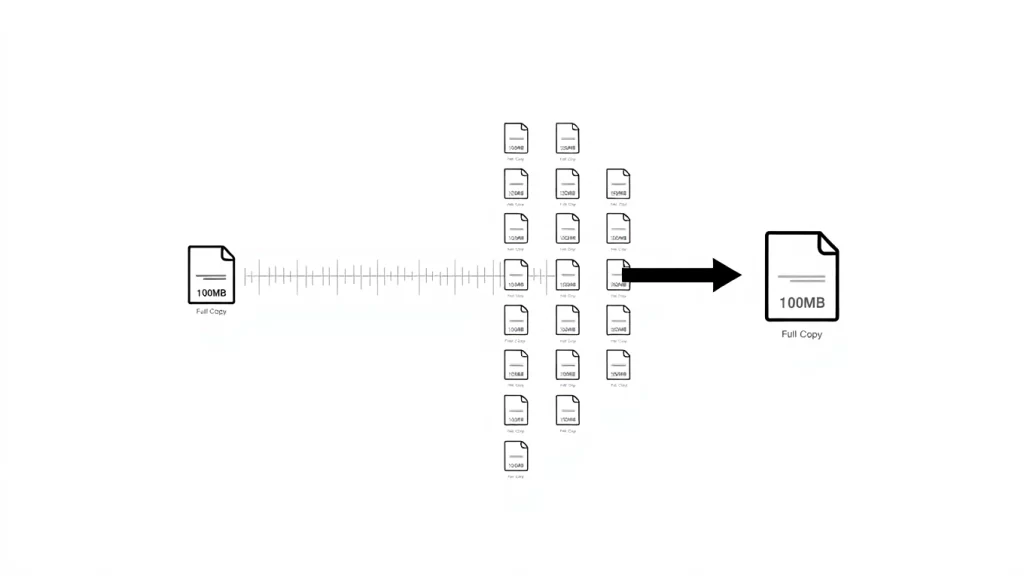
The core issue lies in how the platform handles these historical document states. Each version that gets saved is essentially a complete duplicate of the file, not just the small changes made. This is a critical detail to grasp. For instance, a 100MB file that’s been revised 20 times doesn’t just hold an extra couple of megabytes of data; it occupies a full 2 gigabytes of space for that single item. This dramatic consumption of disk capacity is what necessitates careful document versioning policies. Leaving the default settings untouched is a sure path to an overflowing environment and unexpected capacity warnings.
The Hidden Cost of Default Settings
The out-of-the-box configuration in many SharePoint environments is quite generous, which unfortunately translates into being excessively resource-intensive. Microsoft often sets the default for major versions at 500 copies per file. Think about that for a second. If a high-volume team is frequently collaborating on large files, they could easily hit that limit, leading to an enormous, mostly irrelevant, accumulation of historical data.
Most organizations will never need to roll back to the 498th revision of a standard business report. This excess capacity retention provides no real business value. Beyond simple document control, SharePoint is often the backend for complex solutions that rely on specialized lists and robust data management.
Quantifying the Storage Footprint
The cumulative effect of versioning across thousands of documents is staggering. A single 25 MB PowerPoint file with excessive versions can consume up to 5 GB of storage, highlighting how unchecked versioning dramatically inflates capacity usage (Orchestry, 2026). That’s a massive amount of space reserved for files that, frankly, may never be accessed again. Conducting an audit to quantify your current version usage is always the very first step. Tools that generate version usage reports can show you exactly which libraries and files are the biggest offenders, letting you focus your storage optimization efforts where they’ll have the most impact. What you find is often an eye-opener.
Analyzing Document Lifecycles
Understanding the typical document lifecycle within different departments is crucial for effective SharePoint version management. A file that is updated hourly during a two-week sprint has a very different recovery need than a policy document that changes once a year. By observing usage patterns, administrators can make educated decisions about retention thresholds. For example, documents in the legal department may require deep, long-term history, but the working drafts library for the marketing team can be aggressive with version cleanup.
Never set a global version limit without first understanding the recovery needs of the least-used file type. Customize limits at the library level to balance audit requirements with resource conservation.
When a company begins to manage its version history actively, the rewards are immediate and substantial.
Most version restores happen within the recent history — Microsoft’s Intelligent Versioning leverages this by thinning out older versions automatically, keeping full recent copies while preserving sparse older ones for long-term access (Microsoft, 2025).
Configuring Version Limits for Libraries
The most immediate and effective action to rein in runaway storage is to customize the version settings at the document library level. Not all documents are created equal, so a one-size-fits-all policy won’t work. Highly sensitive, regulatory documents might need a deep historical record, while a simple, internal working document needs only the last few revisions.
Thoughtful SharePoint version management means applying different limits to different content types. This granular control is where the real savings happen. As of 2026, Microsoft recommends using the Automatic setting for most libraries to balance recovery needs with storage efficiency.
Differentiating Major and Minor Versions
SharePoint offers two types of versions: major (1.0, 2.0) and minor (1.1, 1.2). Major versions are typically used for significant milestones or published content, while minor versions track drafts during development. You should definitely use this distinction to your advantage. For finalized, published documents, you might only need major versions. For files undergoing heavy collaborative editing, enabling both types is smart, but you must be aggressive with limits for minor versions, since they accumulate quickly.
To optimize storage, disable minor versions in libraries where content approval is not required, and always set a moderate cap on the number of versions. Microsoft documentation recommends limiting both versions and drafts and supports org-level version limits. Practitioner reviews confirm that excessive version history bloats storage; setting sensible caps (e.g., keeping 50–100 versions instead of the default 500) can significantly reduce the footprint (https://support.microsoft.com/en-us/office/plan-document-versioning-content-approval-and-check-out-controls-in-sharepoint-428b488e-2807-4ef0-b942-91cb09d8921c). AvePoint customer stories report up to a 50% reduction in storage costs after optimizing versioning and content-lifecycle policies (https://www.avepoint.com/blog/manage/how-to-optimize-cloud-storage-3-step-guide).
Step-by-Step Configuration of Version Limits
Adjusting these parameters is done within the library’s settings and is an action that the site owner can usually perform.
Here is the necessary process for setting explicit limits for document versioning:
- Navigate to the Target Library: Go to the document library that you wish to adjust.
- Access Settings: Click the ‘Settings’ gear icon, then choose ‘Library settings’.
- Open Versioning Settings: Under the ‘General Settings’ column, select ‘Versioning settings’.
- Choose Version Type: Decide between ‘Create major versions’ or ‘Create major and minor (draft) versions’. For most general libraries, major versions only is the best practice for storage optimization.
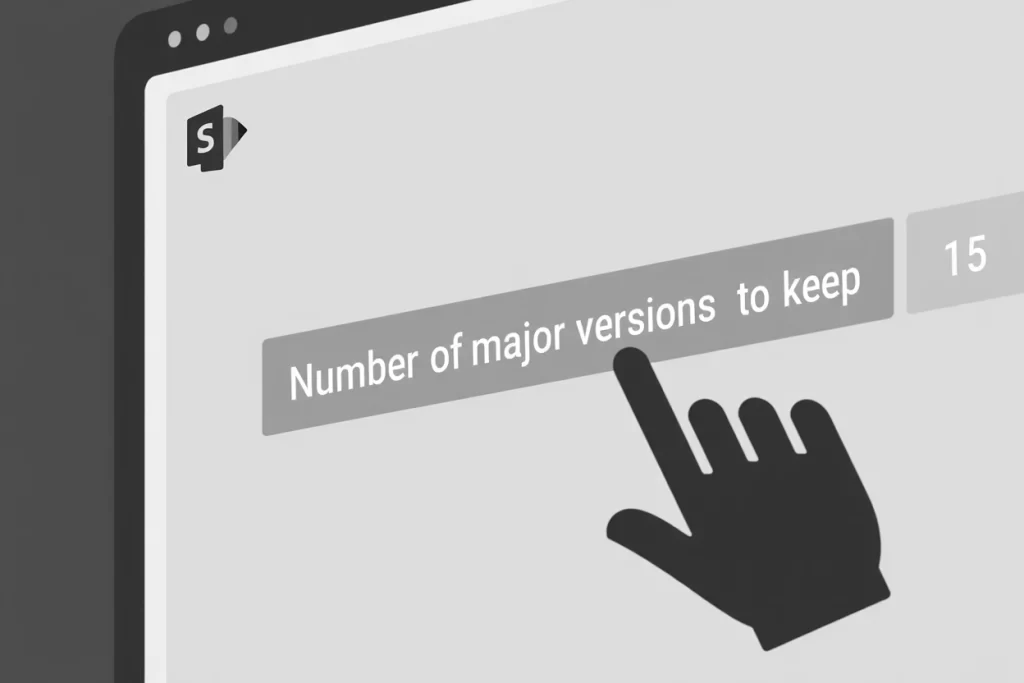
- Set the Major Version Limit: In the field ‘Number of major versions to keep’, enter a realistic, conservative number. Experts often recommend 10 to 20 versions for general use libraries, drastically reducing the default 500. This immediate change has a huge impact.
- Set the Minor Version Limit (If Applicable): If you chose both major and minor, also set the limit for minor versions. A limit of 3 to 5 minor drafts for the latest major version is usually more than enough for tracking minor edits.
- Click ‘OK’: Save your changes to apply the new limits to all existing and new files in that library.
Once these parameters are set, the system will automatically start deleting the oldest revisions as new ones are created, providing continuous version cleanup. This ensures that the history remains manageable.
| Content Type | Recommended Major Version Limit | Recommended Minor Version Limit | Rationale |
| Project Working Files | 10–15 | 3–5 | Frequent changes, short recovery window needed. |
| Standard Business Documents | 5–10 | Not Required (Major Only) | Less frequent, significant changes. Focus on storage optimization. |
| Compliance/Legal Records | 30–50 | Not Required | Long-term audit trail is essential, requiring deeper history. |
| Large Media Files | 2–5 | Not Required | Very large file sizes make versioning extremely costly. |
Versioning Policy Template
Use this customizable Versioning Policy Template to standardize settings across your organization. Copy the table into your governance document and adjust limits based on department needs.

To see these configuration steps in action and understand how the new Automatic versioning mode trims history intelligently, watch this practical tutorial:
It walks through the exact settings and shows real-world storage impact.
Automated Version Cleanup Strategies
Manual adjustments, while effective, can be time-consuming to maintain across a vast corporate landscape. For truly scalable and consistent storage optimization, organizations must embrace automated strategies for version cleanup. Relying on manual intervention for hundreds or thousands of libraries is simply not practical, which is where system-level controls and automation come into play. A sophisticated approach to SharePoint version management can leverage retention policies or dedicated trimming tools. This moves the administrative burden from human effort to intelligent system processes.
Leveraging Microsoft’s Intelligent Versioning
Microsoft has introduced ‘Intelligent Versioning,’ a more dynamic approach that is highly recommended for modern cloud environments. This feature automatically adjusts the version history based on the age of the document, which supports a much more effective storage optimization plan. It works on the principle that people are far more likely to restore a version from the last month than from a year ago.
The system will retain all versions for a shorter, initial period (like 30 days) but then “thins out” the older revisions, keeping hourly, daily, and then weekly versions as the document ages. This provides a deep historical view without the excessive storage cost of keeping every minor edit indefinitely. For many organizations, this ‘Automatic’ setting offers the best balance between historical recovery capability and prudent resource consumption.
Applying Retention Policies for Version Control
Retention policies, managed through the Microsoft 365 compliance center, are a robust tool that can enforce your desired document versioning limits across sites. These policies can be configured to retain items for a specified period and then delete them, including their prior iterations. This is particularly useful when compliance requirements dictate that all documents related to a certain project must be preserved for five years before being purged.
A key benefit of using these policies is that they provide a governed, time-based approach to version cleanup. You can create a rule that says, “Delete all previous versions of a document after 365 days,” regardless of how many versions have accumulated. It’s a powerful way to ensure that historical copies don’t linger past their useful or mandated lifespan. This top-down control simplifies governance immensely.
Expert Tip on Clean-Up: When implementing a sweeping version cleanup strategy, always communicate the new version history depth to users first. Losing the ability to recover an old file without warning is a fast way to generate user complaints.
Using PowerShell for Targeted Cleanup
For existing sites that already have massive version bloat—meaning, thousands of historical versions that predate your new policy—you may need a one-time, powerful clean-up. New settings only prevent future bloat; they don’t fix the legacy problem. For this, administrators should use the SharePoint Online Management Shell with the appropriate cmdlets, such as New-SPOSiteFileVersionBatchDeleteJob.
This is a powerful administrative tool for immediate version cleanup. It lets you target a specific library or even an entire site and delete all versions older than a certain date or those exceeding a specific count. This technique is often necessary to realize immediate storage optimization benefits and avoid further cost overruns. It’s important to run a “what-if” analysis first to ensure you aren’t accidentally deleting versions that a team still needs.
Balancing Version History with Storage Costs
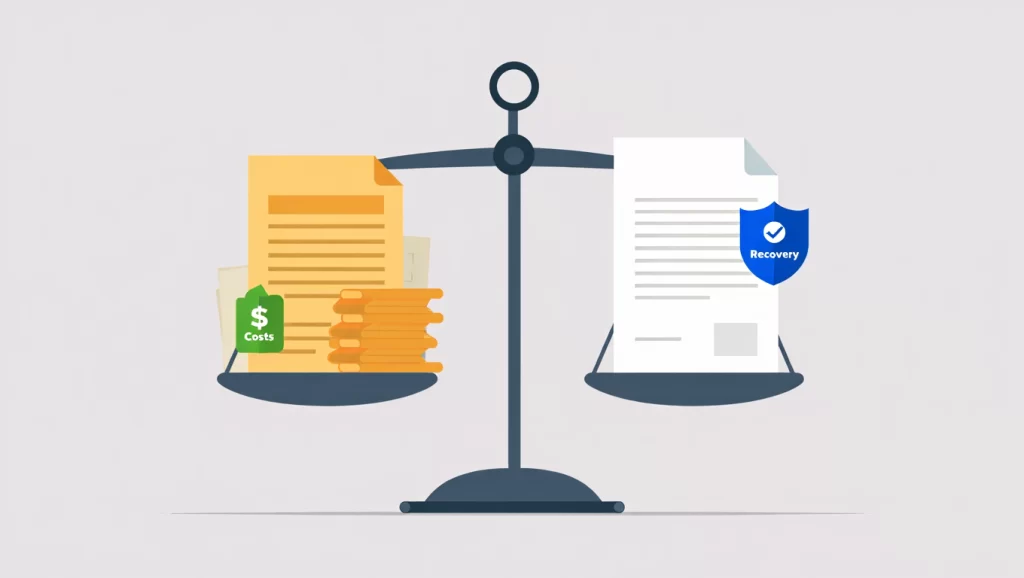
The ultimate goal of effective SharePoint version management is to strike a sensible compromise. You need to keep enough history to recover from mistakes and meet regulatory requirements, but not so much that you waste money on excessive storage. This involves a continuous process of review and alignment with organizational needs. Getting this balance right is what separates good administration from great administration.
Establishing a Classification System
Not every document warrants the same degree of historical retention. Therefore, a successful storage optimization strategy starts with a clear document classification system. Assigning different retention requirements to content based on its importance, legal standing, and lifecycle stage is crucial.
- High-Value/Compliance Documents: Require a long retention period (e.g., 50 versions or 7 years).
- Active Project Documents: Need moderate retention for collaboration (e.g., 15 versions).
- Ephemeral/Draft Content: Minimal retention for quick recovery only (e.g., 5 versions).
This classification directly informs your document versioning settings. For example, a “Contracts” library might have very high limits, while a “Daily Meeting Notes” library should have very low limits.
The Impact on User Experience
While being aggressive with limits achieves great storage optimization, it’s important to consider the end-user experience. Users rely on the system’s ability to undo mistakes. If the version history is too shallow, they may lose important work and get frustrated.
The balance should lean toward keeping enough versions to cover the typical collaborative lifecycle of a document, which rarely extends beyond a few weeks of intensive editing. A good rule of thumb for standard documents is to allow for about three to four weeks of daily edits. This usually translates to the recommended 10 to 20 versions. This method provides robust versioning while still facilitating an aggressive version cleanup over time. This approach ensures that the benefits of SharePoint version management are retained without the associated high cost.
Leveraging Different Storage Tiers
For documents that must be kept for audit or long-term archival but are no longer actively used, moving them off of the primary SharePoint Online storage is an intelligent strategy. Although SharePoint Online itself doesn’t offer different tiers in the same way as Azure, an effective storage optimization tactic is to integrate with a more cost-effective storage solution for inactive data.
This process, often called information lifecycle management, is key. Instead of letting old, static documents hog valuable space in an active library with hundreds of old versions, move the finalized, single copy to a separate, dedicated archive site or leverage Microsoft’s archive capabilities. This allows you to perform an aggressive version cleanup on the active file while still retaining the final published copy indefinitely. This is the smart way to handle long-term retention.
The Three-Step Versioning Audit:
- Run a version usage report.
- Identify the top 10 largest libraries by version consumption.
- Consult with the library owners to establish a tailored, lower version limit for each one.
Frequently Asked Questions
How can an admin effectively implement the new version limits across a large organization?
The most effective approach for an administrator is to utilize PowerShell scripts or the SharePoint Admin Center’s new version history limits feature. You should first set new, moderate version limits at the tenant or site collection level to apply to all new libraries. For existing libraries, use a targeted PowerShell script with the Set-SPOListVersionPolicy or a similar batch command to enforce the new count or expiration limits, especially for libraries with large files.
Why is a low version count recommended for large media files, and what is the storage risk?
A low version count, such as 2-5, is recommended for large media files (videos, high-resolution images, large CAD drawings) because each version is a full copy. If a 500MB video is revised 10 times, that single file is consuming 5GB of space. The storage optimization risk is extreme; these file types can use up a site’s entire quota with just a few versions. Aggressive document versioning limits here are a non-negotiable part of SharePoint version management.
What is better for storage optimization: limiting by version count or by time (expiration date)?
Limiting by a time-based expiration date is generally superior for strategic storage optimization. A count-based limit (e.g., keep 50 versions) is simple, but a highly active document will still accumulate 50 versions in a week, using a lot of space. A time-based limit (e.g., expire versions older than 90 days) provides a more predictable and controlled decay of history, ensuring that old versions are consistently purged regardless of how often the document is updated. The ‘Automatic’ intelligent versioning approach combines both by dynamically thinning versions over time.
Before moving on to the final section and answers to frequently asked questions, we recommend watching this practical video. It clearly demonstrates how to set up the new automatic limits and perform effective SharePoint version management in SharePoint Online to avoid disastrous storage overconsumption.
Managing the storage footprint within SharePoint is an ongoing administrative responsibility, and effective SharePoint version management is the single most important lever to control costs and maintain system performance. Uncontrolled document versioning can quickly transform a valuable collaboration tool into a massive drain on resources.
By moving beyond the default settings, setting realistic limits, and strategically employing automated version cleanup methods like Intelligent Versioning and PowerShell scripts, organizations can successfully achieve crucial storage optimization. Taking control of these settings now will ensure that the platform remains a powerful, cost-effective resource for years to come. It’s time to stop paying for history you don’t need and start implementing a smart versioning policy today.

Sources
- Microsoft Learn: Set default organization version limits (2025)
- Microsoft Learn: Plan version storage for document libraries (2025)
- Practical365: Intelligent Versioning Rolls Out (2024)
- Orchestry: How version history affects SharePoint and OneDrive storage (2026)
- AvePoint: SLSA Cuts Storage Costs by 50% with AvePoint (2023)
- Quote: Greg Zelfond, SharePoint MVP, SharePoint Maven (2025)