Your team usually doesn’t struggle because SharePoint is weak; it struggles because nobody agrees on the best SharePoint site features to use, when to use them, or how to govern them. That confusion costs hours every week in document libraries, lists and calendars, Microsoft Teams handoffs, web parts, and permissions.
In 2026, the risk isn’t just clutter—it is slower approvals, messy access control, and content people stop trusting. One rule holds up almost everywhere: the best SharePoint site features are the ones your staff can find, understand, and use without a support ticket.
Introduction to SharePoint Site Features
When exploring the best SharePoint site features, the platform can look deceptively simple on the surface. Under that surface, though, sit the settings, structures, and collaboration patterns that decide whether a site becomes useful or turns into a digital attic. This section covers the platform itself and why site features matter to real businesses, not just administrators.
If you are setting up your workspace for the first time, this step-by-step tutorial breaks down how to navigate, customize, and utilize the best SharePoint site features effectively.
Overview of SharePoint
SharePoint is Microsoft’s web-based platform for document management, collaboration, publishing, and intranet experiences. Today, it acts as the robust backend content service for the broader Microsoft 365 ecosystem. Modern SharePoint sites support document libraries, lists, pages, news, and web parts, while team sites connect closely to Microsoft 365 groups and can also work natively with Microsoft Teams and Microsoft Viva.
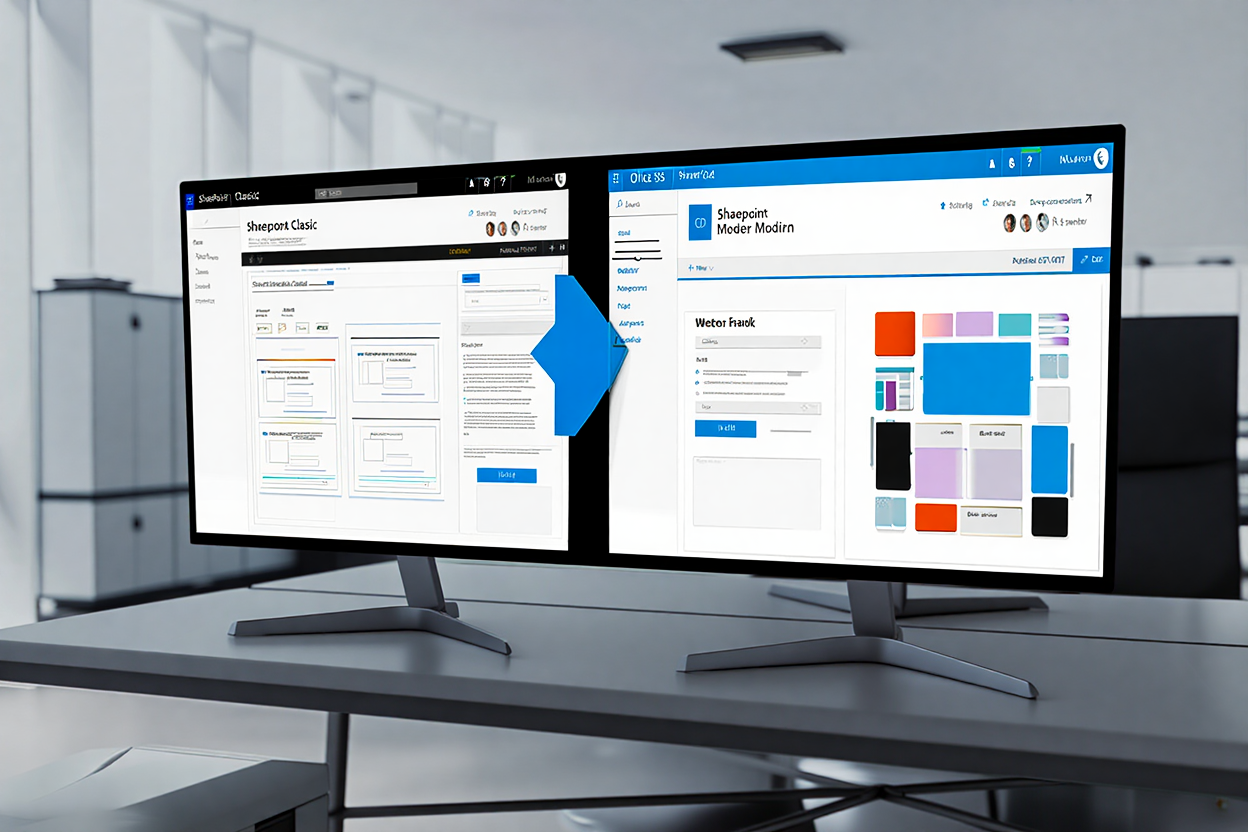
Microsoft notes that modern experiences cover most lists and libraries, new pages, team sites, and communication sites, which is why the best SharePoint site features today usually live in the modern experience rather than the classic one. Gartner (Stamford, 2024) noted in its Technology Adoption Roadmap that improving employee productivity and user experience are key value drivers for digital workplace technologies, with 54% of surveyed IT operations technologies currently in the pilot phase.
- Document collaboration: Teams can co-author files, track versions, and reduce email attachments that never stop multiplying.
- Knowledge publishing: Communication sites and pages help departments publish policies, news, and reference content in a format people can actually browse, often surfacing directly in Viva Connections.
- Process support: Lists, forms, approvals, and automation turn a simple site into a working operational hub.
Importance of Site Features for Businesses
Features matter because structure shapes behavior. If your finance team, legal team, or HR team can’t tell where to store files, who can edit them, or which site owns the latest document, the platform starts leaking trust.
That’s why the best SharePoint site features aren’t just pretty options on a menu—they set rules for version control, access, search, and collaboration rhythm. If a feature saves clicks but creates confusion about ownership, it isn’t helping your business. Clarity beats clever customization almost every time.
“Technology is best when it brings people together.” — Matt Mullenweg, developer, entrepreneur, and co-founder of WordPress, quoted in media interviews and conference talks
Top SharePoint Site Features for Enhanced Collaboration
Collaboration is where most organizations either fall in love with SharePoint or get irritated by it. The tools in this section—document libraries, lists, calendars, and Teams integration—are the working parts employees touch every day.
Document Libraries
Document libraries sit at the center of many best SharePoint site features because they handle storage, metadata, versioning, and shared editing in one place. Microsoft describes version history as a built-in data protection feature, and newer version history limits can be set at organization, site, and library level.
That matters a lot in regulated or high-change environments where rollback and auditability are not optional.
Scattered attachments destroy version control; centralized document libraries guarantee single-source enterprise truth.
Advanced Document Processing
With the evolution of AI, document libraries now heavily interact with SharePoint Premium (formerly Syntex). This allows organizations to apply document understanding models that automatically extract metadata, classify contracts, and apply retention labels without manual data entry.
Good libraries usually have a simple content model: a clear name, useful metadata, and permission inheritance left alone unless there’s a real reason to break it. In small project sites, one clean library often beats five micro-libraries with mysterious purposes.
Lists and Calendars
Lists are the quiet workhorses. You can track vendor requests, onboarding tasks, policy reviews, asset inventories, or incident logs without dragging in a full custom app.
Calendars, on the other hand, have fundamentally shifted. While classic SharePoint calendars exist, they are largely considered legacy. Modern schedule visibility relies on Microsoft 365 Group Calendars or Channel Calendars in Teams, which use SharePoint as their foundation.
Microsoft Loop Integration
Static pages force constant refreshing; Microsoft Loop components enable frictionless, real-time data synchronization.
You can embed a Loop table in a Teams chat or Outlook email, and the data syncs instantly, reducing the need to constantly update a standalone interface.
Static Excel files break process discipline; SharePoint Lists provide automated, secure, and repeatable workflows. Review this practical comparison before building your next tracker from scratch:
| Criterion | SharePoint List | Excel File in Library |
| Multi-user editing | Strong for structured records and views | Possible, but easier to break process discipline |
| Permissions | Integrated with site security model | Works, though row-level logic is weak |
| Automation | Excellent with Power Automate triggers | Possible, but usually messier |
| Reporting views | Native filtering, grouping, formatting | Manual unless heavily managed |
The result? If the data needs repeatable workflow, reminders, and ownership, a list usually wins. Excel still fits quick analysis, but not every recurring business process should live there.
Integration with Microsoft Teams
Microsoft states that team sites are, by default, part of a Microsoft 365 group and may also be part of a team in Microsoft Teams. In practice, that means files shared in Teams often live in SharePoint behind the scenes.
This deep architectural link is one of the best SharePoint site features because it reduces split-brain administration. Permission management for those connected team sites is best handled through Teams or the Microsoft 365 group rather than through random SharePoint tweaks.
Isolated SharePoint sites silo knowledge; Microsoft Teams integration transforms them into active operational hubs.
Statista (Hamburg, 2024) reported that Microsoft Teams had about 320 million daily active users worldwide, a reminder that Teams-connected collaboration is not a fringe workflow anymore.
Customizable Design and Layout Features
A SharePoint site doesn’t need to look flashy to work well, but it does need to feel coherent. Design choices affect navigation, adoption, mobile usability, and the speed with which people trust what they see on a page.
Themes and Templates
Themes and templates give sites a recognizable shape. A communication site for HR should not feel like a project war room, and a project site should not look like a public-facing intranet hub.
The best SharePoint site features here are the boring-but-helpful ones: consistent branding, clear navigation, and templates that reduce setup drift between departments.
The SharePoint Brand Center
Modern administration relies on the SharePoint Brand Center, which centralizes custom fonts, colors, and organizational assets. It ensures that when a marketing team rolls out a new logo or typography, it cascades seamlessly across all connected communication sites.
- Department templates: These help HR, Finance, and IT start from the same baseline instead of improvising every new site.
- Page templates: Reusable layouts keep news posts, policy pages, and help articles visually consistent.
- Theme control: Color and typography should support recognition, not become a branding science experiment.
Web Parts and Widgets
Modern pages are built from web parts, and Microsoft calls them the building blocks of a page. You can connect certain web parts to make pages interactive—for example, linking a Document Library web part to a File and Media web part. That’s useful because it turns a static page into a live dashboard.
SharePoint Framework (SPFx)
When out-of-the-box web parts fall short, the SharePoint Framework (SPFx) allows developers to build custom widgets that integrate securely with Microsoft Graph. This is how enterprises connect their proprietary internal tools directly to the intranet homepage.
Still, restraint matters. Most people add too many web parts too early. Two or three relevant components—a news block, quick links, and highlighted content—often outperform a page stuffed with everything available in the toolbox.
Responsive Design Options
Modern SharePoint pages are designed to work better across devices than classic layouts, and that matters more now than it did a few years ago. Staff read policies on phones, managers approve requests from tablets, and field teams open documents from wherever they happen to be standing. When designing for on-the-go access, optimizing the digital workplace for frontline workforce collaboration ensures field teams stay connected.
When integrated with the Microsoft Viva Connections mobile app, SharePoint communication sites become a fully responsive, pocket-sized intranet. So when people discuss the best SharePoint site features, responsive design shouldn’t be treated like decoration. It’s basic usability.
Design the mobile view first for high-traffic pages. If your homepage only makes sense on a wide desktop monitor, adoption will sag faster than most teams expect.
“Information technology is at the core of how you do your business and how your business model itself evolves.” — Satya Nadella, CEO of Microsoft
Security and Permission Management
Security is where a clean SharePoint build can quietly fall apart. You don’t notice permission mistakes when everything is calm; you notice them when sensitive files get exposed, editing rights sprawl, or owners leave the company.
User Permissions and Access Levels
Microsoft recommends using built-in SharePoint groups for communication sites and managing team site permissions through the associated Microsoft 365 group. That advice exists for a reason.
The best SharePoint site features only stay useful when permission logic stays understandable. If every library, folder, and list has unique settings, your support model turns into archaeology.
SharePoint Advanced Management (SAM)
Manual access reviews fail at scale; SharePoint Advanced Management automates enterprise data access governance.
This administrative add-on provides robust reports to identify overshared sites and allows admins to restrict site access to specific security groups automatically.
- Owners: Keep this group small. Two to four accountable people is usually enough for a business site.
- Members: Use for contributors who edit content regularly, not for everyone with a pulse.
- Visitors: Ideal for read-only audiences on communication sites and policy portals.
Data Encryption and Compliance
Encryption and compliance controls don’t always sit front-and-center in daily SharePoint use, but they’re part of why enterprises trust the platform. Version history, retention behavior, access control, and Microsoft 365 compliance integrations help organizations protect documents even as collaboration speeds up.
In heavily regulated environments, though, the exact model may differ; a site built for highly regulated data won’t be governed like a casual project workspace.
Gartner (Stamford, 2024) stated in August that everyday AI and digital employee experience were less than two years from mainstream adoption, and its analysts tied that shift directly to reducing digital friction for employees. That makes governance more urgent, not less, because AI works best on well-structured and well-permissioned content.
Best Practices for Secure Sites
Security practices don’t need drama. They need rhythm.
- Map the site purpose first. Decide whether the site is for project collaboration, publishing, or records-oriented work before assigning permissions. Wrong purpose, wrong model.
- Use group-based access. Add people to Microsoft 365 groups or sharepoint online groups instead of granting one-off rights to individuals. Six months later, you’ll thank yourself. Granular permissions create invisible risks; group-based access ensures scalable, transparent SharePoint governance.
- Limit unique permissions. Break inheritance only where a business need is real and documented. Otherwise, you create invisible risk.
- Review ownership quarterly. If site owners changed roles or left, update access fast. Orphaned administration is a classic source of trouble.
- Check external sharing settings. Many leaks aren’t hacks; they’re overgenerous sharing decisions made in a rush.
Rule: Fewer permission exceptions usually mean fewer incidents. If you need a diagram to explain a site’s access model, it’s probably already too complicated.

Efficient Use of SharePoint Online Groups and Subsites
This is the section where architecture choices get real. Teams often ask whether to use sharepoint online groups, whether to create sharepoint subsites, or whether flat site structures are better. The answer depends on governance maturity, content ownership, and how independent each workspace needs to be.
Creating and Managing SharePoint Online Groups
Sharepoint online groups still matter, especially for communication sites and controlled access scenarios. They make it easier to assign permission levels to collections of users rather than chasing individuals.
Microsoft also notes that sharepoint online groups and Microsoft Entra references help manage permissions efficiently, which is one reason mature administrators still use them carefully.
When you create sharepoint online groups, name them in plain language. “HR Policy Editors” beats “SP-HR-CP-ED-02” unless your governance model truly requires coded naming. The best SharePoint site features feel easier when admins stop naming sharepoint online groups like network hardware.
Purpose and Structure of SharePoint Subsites
Legacy SharePoint relied on nested subsites; modern architecture demands flat, dynamic Hub Sites.
Even though sharepoint subsites still exist in older setups, most modern architecture guidance leans heavily toward flatter structures and cleaner navigation.
In the past, creating sharepoint subsites was the standard way to build an intranet hierarchy. Today, Hub Sites replace that functional need by virtually connecting flat sites without tangling their permissions.
Sharepoint subsites can still make sense in older environments or tightly controlled legacy builds, yet they often add complexity for permissions, lifecycle management, and migration planning.
If you nest sharepoint subsites too deeply, breaking inheritance becomes a nightmare. So yes, sharepoint subsites have a purpose—but usually in narrower, legacy contexts than they once did.
Most modern organizations should treat sharepoint subsites as an absolute exception. If a business unit needs independent ownership, branding, retention behavior, or membership, a separate site connected to a Hub is often the cleaner move than creating sharepoint subsites.
Scenarios for Using Groups and Subsites Effectively
So when do sharepoint online groups and sharepoint subsites still make sense? Usually when the boundary is clear and the support model can explain it without hand-waving.
- Communication site with layered editors: Sharepoint online groups fit well when a small editorial team updates pages for a large read-only audience.
- Legacy site collection modernization: Sharepoint subsites may remain temporarily while content is being reorganized into a flatter Hub structure.
- Project portfolio model: Separate sites linked by hub navigation almost always beat sharepoint subsites when each project needs independent lifecycle control.
- Isolated archives: Sharepoint subsites might be used strictly to lock down static, read-only historical data under a legacy parent site, though even here, a new flat site is preferred.
“The advance of technology is based on making it fit in so that you don’t really even notice it, so it’s part of everyday life.” — Bill Gates, co-founder of Microsoft
Enhancing Productivity with SharePoint Integrations
SharePoint gets more useful when it stops acting alone. The most productive environments connect files, conversations, forms, tasks, and workflows so users don’t keep copying the same information into five tools.
Integrating with Microsoft 365 Apps
Integration with Word, Excel, PowerPoint, OneNote, Outlook, Teams, and Microsoft Loop is one of the best SharePoint site features because it removes friction from daily work.
Files stored in SharePoint can be edited collaboratively in familiar Microsoft 365 apps, and team sites connected to Microsoft 365 groups bring together files, calendars, mailboxes, and task-oriented collaboration patterns. That isn’t magic; it’s just good ecosystem design.
“Simplicity is the ultimate sophistication.” — Leonardo da Vinci, Italian polymath of the High Renaissance
Third-Party Integrations
Third-party tools can extend SharePoint, but not every extension is wise. CRM connectors, e-signature tools, BI platforms, and service desk integrations can be excellent in a mature tenant.
In a messy tenant, they can spread bad structure faster. That’s the catch. The best SharePoint site features depend on content quality first, integration second.
I’ve seen teams connect everything and govern nothing. It feels productive for three months. Then duplicate records, broken ownership, and awkward permissions show up like unpaid bills.
Automating Workflows with Power Automate
Microsoft’s Power Automate documentation highlights SharePoint workflows, cloud flows, scheduled flows, and wide connector support, including SharePoint, SQL Server, Salesforce, Excel, and Dropbox.
For routine processes—document approval, reminder emails, intake tracking, metadata updates—automation is one of the best SharePoint site features because it turns passive storage into active process support.
McKinsey (New York, 2023) wrote in its analysis of generative AI that knowledge work activities involving collaboration and the application of expertise could see some of the largest impacts from AI and automation, which helps explain why workflow-connected content systems matter so much now.

Unique Features and Tips for Maximizing SharePoint Usage
Once the basics are stable, the platform gets more interesting. This section looks at AI-related capabilities, performance habits, and what successful SharePoint implementations tend to share beneath the surface.
Utilizing AI and Machine Learning
Microsoft’s recent adoption materials and public-preview resources point to AI-assisted experiences in SharePoint, including agent-style capabilities and AI support for drafting or improving content in some Microsoft 365 contexts.
Your mileage may vary by license and release status, but the direction is obvious: the best SharePoint site features are increasingly tied to better metadata, cleaner sites, and content AI can interpret accurately.
Microsoft Copilot in SharePoint
Content creation is being transformed by Microsoft Copilot. Authors can use Copilot in SharePoint to generate page structures, rewrite text for specific tones, and instantly pull context from other organizational files.
Taxonomy isn’t administrative housekeeping; clean metadata is the foundational scaffolding for Microsoft Copilot.
SharePoint Premium
Previously known as Syntex, SharePoint Premium brings advanced AI to content management. It offers high-volume document processing, automated taxonomy tagging, and e-signature workflows, turning dull administration into an intelligent framework. Folders hide enterprise data; automated metadata via SharePoint Premium powers AI-driven knowledge retrieval.
Tips for Optimizing Site Performance
Performance problems often come from avoidable clutter, not from SharePoint itself. Too many web parts, oversized pages, confused navigation, duplicate libraries, and badly planned permissions all slow people down—sometimes more than they slow the site.
The Page Diagnostics for SharePoint Tool
Guesswork slows intranets down; the Page Diagnostics tool provides measurable, baseline-driven performance optimization.
Using the official Page Diagnostics for SharePoint tool (a browser extension provided by Microsoft) allows owners to accurately evaluate page load times against Microsoft’s recommended standards, specifically identifying heavy web parts or oversized images.
- Reduce homepage overload: Put high-demand links first and archive stale promos. Homepages should guide, not shout.
- Keep metadata practical: Three useful columns beat twelve nobody completes.
- Watch versioning and storage: Libraries with aggressive change frequency need deliberate version policies, especially for large files.
Case Studies of Successful SharePoint Implementations
Successful SharePoint work usually follows a similar pattern even across different industries. The organizations pick a simple information architecture, keep ownership visible, connect sites to real processes, and avoid overengineering in month one.
A legal department may prioritize permissions and policy publishing; a PMO may care more about templates, lists, and automation. Context changes the recipe, but not the principle. Build for the next 12 months, not the next 12 fantasies. A smaller site that people trust will outperform a giant portal full of abandoned ideas.
Conclusion: Choosing the Best SharePoint Site Features for Your Needs
By this point, the pattern should feel clear. The best SharePoint site features depend less on novelty and more on fit: the right collaboration model, the right permission structure, and the right content design for the people using the site every day.
Key Takeaways for Businesses
Start with purpose. Then match that purpose to a site type, a permission model, and a few features your users will actually touch.
Document libraries, lists, Microsoft Teams integration, sharepoint online groups, Hub Sites instead of sharepoint subsites, and Power Automate workflows usually deliver the strongest return when they’re tied to a clear owner and a clear process.
And yes, sometimes the best SharePoint site features are the least glamorous ones—version history, group-based permissions, sensible navigation, and a page layout that doesn’t annoy people on mobile.
Don’t let your new site become a digital attic. Before you migrate your files or open access to users, use our practical, step-by-step checklist to ensure your site aligns with 2026 governance, security, and performance standards.

Future Trends in SharePoint Development
Expect more AI-assisted authoring through Copilot, stronger content intelligence with SharePoint Premium, and tighter connections across Microsoft 365 via Microsoft Loop and Viva. But don’t assume new features will rescue weak governance. They won’t.
In most cases, organizations that keep content structured, permissions clean, and architecture flat will benefit first from whatever Microsoft adds next.
If you’ve been deciding between a simpler site model and a highly customized one, which choice has actually worked better in your environment—and what would you change if you had to rebuild it next month?
FAQ
What is the best SharePoint site feature for collaboration?
Document libraries are often the strongest starting point because they combine storage, version history, co-authoring, and permissions. For most teams, they become even more useful when paired with Microsoft Teams and Microsoft Loop.
How to use sharepoint online groups correctly?
Use sharepoint online groups when you need role-based access such as Owners, Members, or Visitors, especially on communication sites. Keep names clear, avoid one-off permissions, and review membership regularly.
Is it still worth using sharepoint subsites?
Yes, sometimes, but usually only in legacy or tightly scoped archive scenarios. For many modern environments, separate flat sites connected by Hub navigation are vastly easier to govern than sharepoint subsites.
Sharepoint online groups vs sharepoint subsites: which is better?
They solve entirely different problems. Sharepoint online groups handle access control and security boundaries, while sharepoint subsites shape physical site structure. In modern builds, groups plus a flatter site architecture usually create fewer headaches.
When to choose the best SharePoint site features for a new site?
Choose them before content migration or user rollout begins. Early decisions about libraries, permissions, sharepoint online groups, and integrations prevent expensive cleanup and structural redesigns later.
Sources
- Sharing & permissions in the SharePoint modern experience
- Power Automate documentation
- Version history limits for document libraries
- Connect web parts in SharePoint
- Hype Cycle for Digital Workplace Applications, 2024
- Number of daily active users (DAU) of Microsoft Teams worldwide
- The economic potential of generative AI: The next productivity frontier